Using Yealink DECT W73H phones with Microsoft Teams SIP gateway as a home phone VoIP solution.
Due to the imminent PSTN switch off, as well as the fact that we got 1gbps fibre to the house, I was looking for a solution to retain our BT landline number and use a VoIP service. I already have a Teams phone in the office (a Yealink MP54), but an office desk phone isn’t suitable for the home — it’s too big and not portable.
I had a look at the Yealink DECT phones, which have a small base station and can have multiple handsets. These aren’t native Teams phones, but they are SIP-compatible VoIP phones, and if compatible with Teams SIP Gateway, should be a neat option. This turned out to be a great solution. Functionality is not the full Teams experience, but you will be able to make and receive calls as easily as a landline, as well as checking Teams voicemail.
Warning: I have had issues with this solution. Occasionally the handsets will not ring and show “Synchronising”. This happens more often with 2 handsets registered to the base, and the only fix is to reboot the base by removing the power (remote reboot does not work). Yealink have also closed their support forum and haven’t offered any firmware updates since this article was written — as such I don’t recommend these phones any more for Teams. I may look at an alternative such as the Poly Rove 30.
You will need a Microsoft 365 (business) subscription with the following licenses:
You need one of the following compatible Yealink base stations:
Note that the W60B base station is not compatible.
And one or more compatible handsets:
I purchased the W70B base station with the W73H handset from broadbandbuyer.com.
You will also need at least one phone number in Teams. You can use any provider for this, or get a free number with a Microsoft Calling Plan.
I ported in my BT landline to use with a Microsoft Calling Plan — that took about 10 days. Just initiate the port in the Teams admin centre and Microsoft do the rest. Your BT landline will automatically cease, along with any other services such as DSL, so be careful if you are still in a contract as there may be an exit fee.
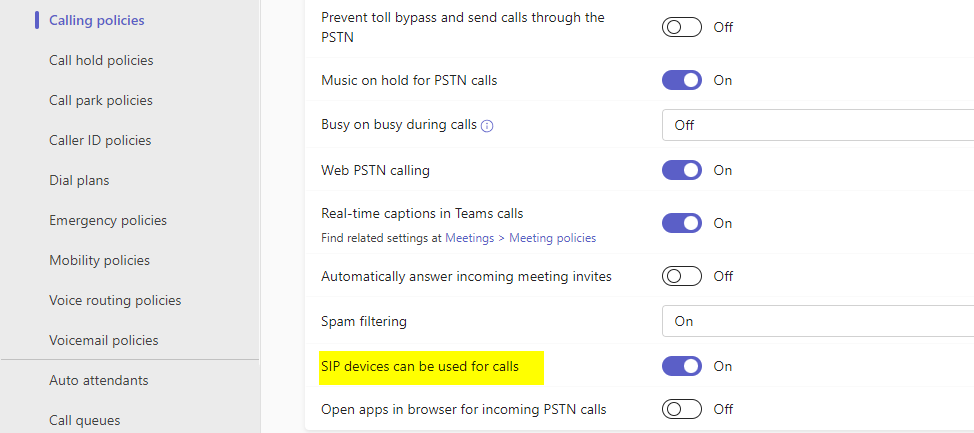
Luckily this is both free and very easy, being a single checkbox.
In the Teams Admin Center at admin.teams.microsoft.com:
Then you can manage SIP devices under Teams devices to manage your SIP phones connected to Teams.
Now that Teams is ready, connect the W70B base station to power and ethernet (or use PoE).
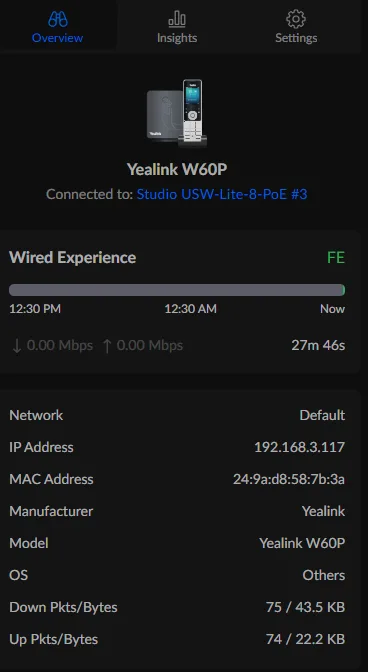
Connect to the web interface at the base station’s IP address (e.g. https://192.168.3.117) and login with the default credentials (admin / admin).
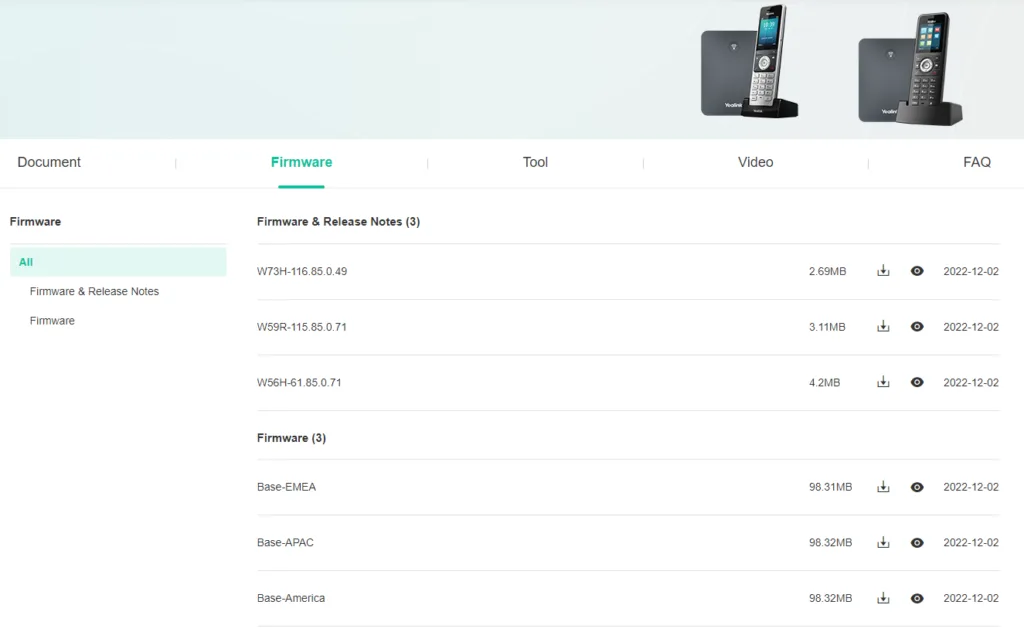
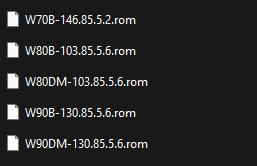
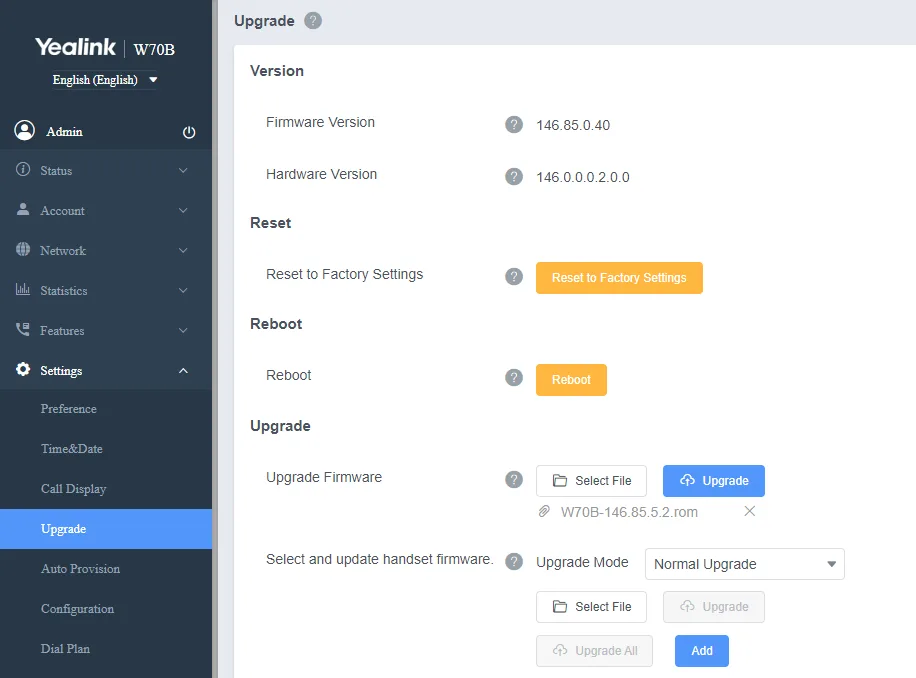
Both the base station and handset need the SIP Gateway-compatible firmware.
The lights will flash whilst it is updating.
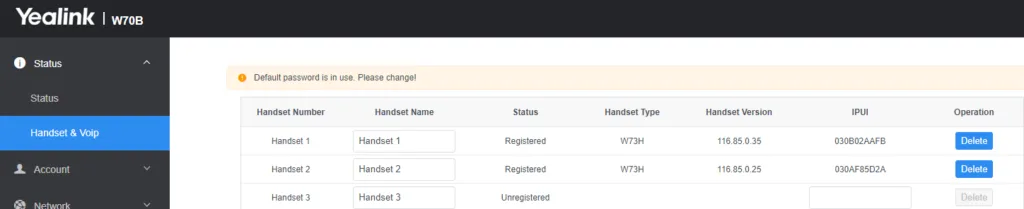
Once finished, check if the handset is registered under Status > Handset & VoIP. If not, register it by pressing and holding the register button on the base station, then pressing the Reg softkey on the handset. You can also do this from the web interface on the Handset and VoIP page by clicking Start Register Handset.
Register all handsets first, then go to Settings > Upgrade, select the W73H firmware and upgrade all handsets.
After converting to the SIP Gateway firmware, you can sign in to Microsoft Teams:
https://aka.ms/siplogin and enter the code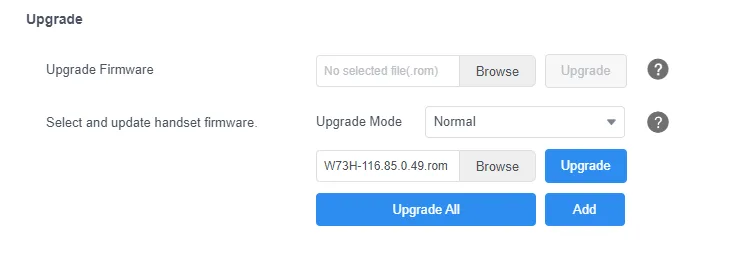
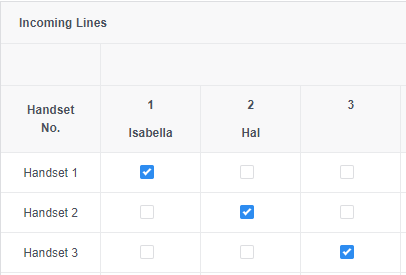
That should be it! If you have more than one handset, you can configure them on the Number Assignment page on the base station to assign all handsets to one user, or to different users — so the same base station can have multiple accounts registered.