
If you need to set a consistent desktop and lock screen wallpaper across devices in your organisation, Microsoft Intune provides a reliable way to do it. This guide walks through packaging a wallpaper as a Win32 app and configuring the lock screen and desktop wallpaper policy.
No Azure blob or other storage is required for this solution, since the wallpaper is packaged and copied to the computer locally.
The wallpaper is packaged as a Win32 app and deployed to devices. Once installed, the wallpaper image is copied to:
C:\Windows\Web\Wallpaper\Wallpaper.jpgNote: The wallpaper has to be .jpg format, .png will not work in the Intune policy to set on the desktop, although the lock screen does support .png.
$DestinationFolder = "C:\Windows\Web\Wallpaper\"
$WallpaperName = "Wallpaper.jpg"

# Create folder if required
if (!(Test-Path $DestinationFolder)) {
    New-Item -Path $DestinationFolder -ItemType Directory -Force
}$WallpaperPath = "C:\Windows\Web\Wallpaper\Wallpaper.jpg"
if (Test-Path $WallpaperPath) {
Remove-Item $WallpaperPath -Force
}
Write-Host "Wallpaper removed."
exit 0
# Copy wallpaper
Copy-Item `
-Path "$PSScriptRoot\$WallpaperName" `
-Destination "$DestinationFolder\$WallpaperName" `
-Force
Write-Host "Wallpaper copied successfully."
exit 0$WallpaperPath = "C:\Windows\Web\Wallpaper\Wallpaper.jpg"
if (Test-Path $WallpaperPath) {
Write-Host "Detected"
exit 0
}
exit 1cd to your working folder.
.\IntuneWinAppUtil.exe -c "Wallpaper\Source" -s "install.ps1" -o "Wallpaper\Output"Once the .intunewin file is generated, add it as a new Windows app (Win32) in Intune.
Install command:
powershell.exe -ExecutionPolicy Bypass -File Install.ps1Uninstall command:
powershell.exe -ExecutionPolicy Bypass -File Uninstall.ps1Install behaviour: System
Detection script:
Add a custom script, and add the detection.ps1 script we created above.
When updating the wallpaper, add new versions as a separate package. Increment the version in Intune and supersede the old package with uninstall selected. The file name on disk remains Wallpaper.jpg.
A configuration policy named e.g. INT-WIN-Wallpaper is created to apply the lock screen and desktop wallpaper settings.
The policy references the wallpaper file at C:\Windows\Web\Wallpaper\Wallpaper.jpg and sets both the desktop background and the lock screen image to use this file.
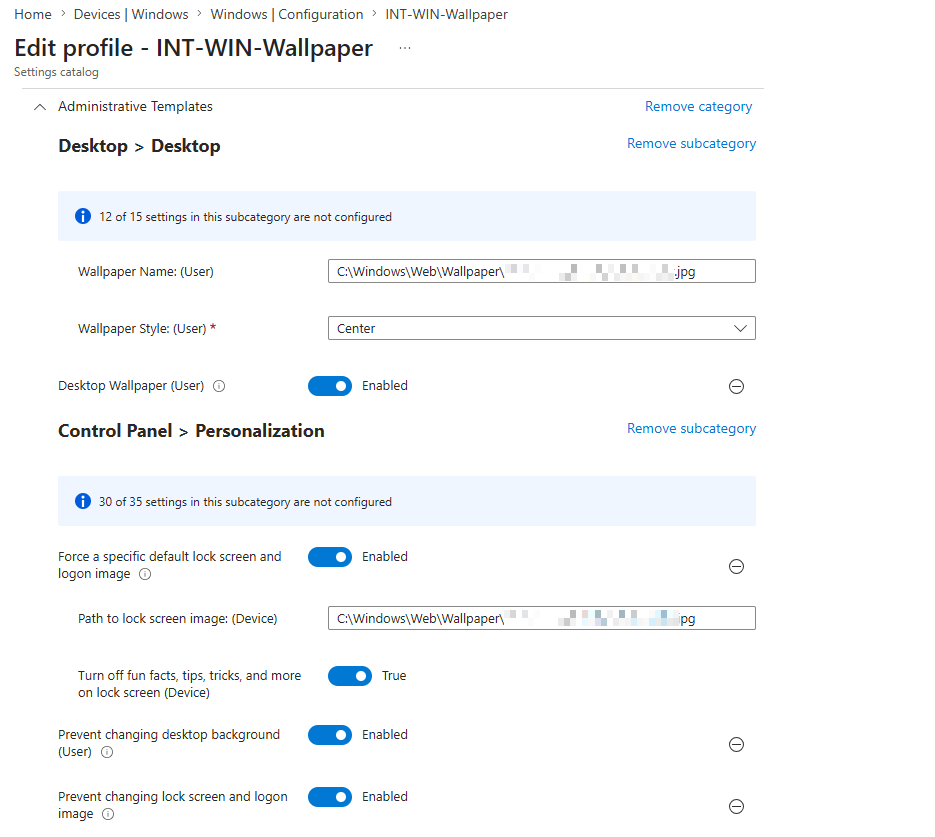
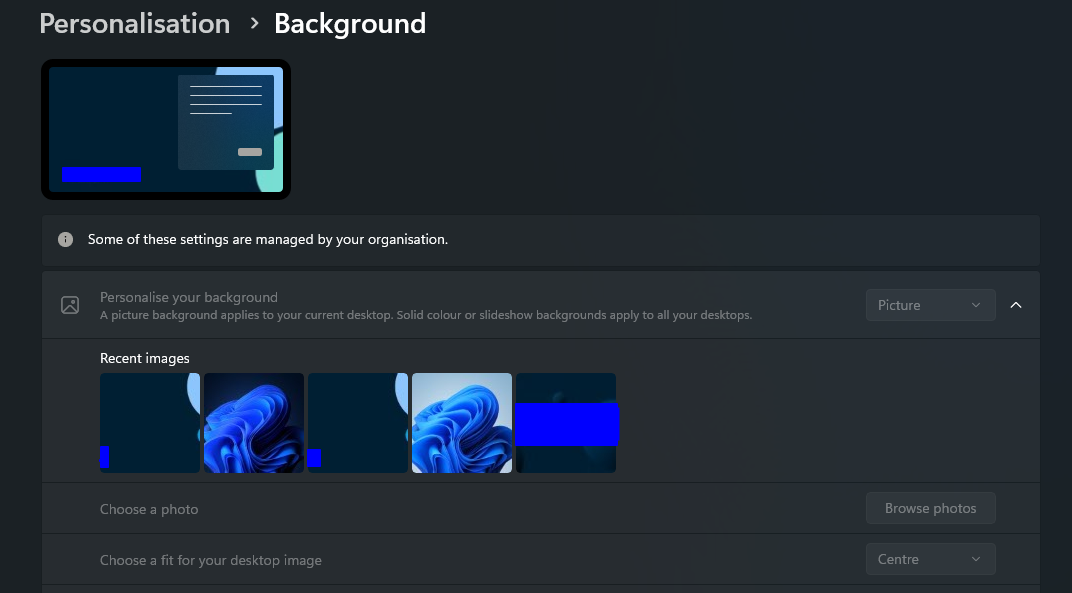
The desktop wallpaper will be set, the lock screen background will be set, and users will be unable to change either setting.
Deploying a corporate wallpaper via Intune is straightforward once the packaging and policy are in place. Using supersedence for version updates keeps the deployment clean and ensures devices always have the latest wallpaper applied.

