If you need to set a consistent desktop and lock screen wallpaper across devices in your organisation, Microsoft Intune provides a reliable way to do it. This guide walks through packaging a wallpaper as a Win32 app and configuring the lock screen and desktop wallpaper policy.
No Azure blob or other storage is required for this solution, since the wallpaper is packaged and copied to the computer locally.
I would use one of the below sizes. This makes sure that the wallpaper looks sharp on all screen sizes, and minimises the amount of stretching.
| Aspect ratio | Resolution | Covers |
|---|---|---|
| 16:9 | 3840×2160 | Most desktops and monitors |
| 16:10 | 3840×2400 | Dell, Lenovo, HP business laptops |
Using the Stretch fit setting in Windows means:
For a corporate wallpaper, I would still recommend:
The wallpaper is packaged as a Win32 app and deployed to devices. Once installed, the wallpaper image is copied to:
C:\Windows\Web\Wallpaper\Wallpaper.jpgNote: The wallpaper has to be .jpg format, .png will not work in the Intune policy to set on the desktop, although the lock screen does support .png.
# To update the version in the future, just change $CurrentVersion in both scripts to match (e.g., "1.5")

$DestinationFolder = "C:\Windows\Web\Wallpaper"
$WallpaperName = "Wallpaper.jpg"
$CurrentVersion = "1.4"
[string]$LogPath = "C:\ProgramData\IntuneLogs\Wallpaper"
$LogFile = "$LogPath\$WallpaperName-install.log"
$TagFile = "$DestinationFolder\Wallpaperversion.tag"

# ================================
# LOGGING SETUP
# ================================

if (!(Test-Path $LogPath)) {
    New-Item -ItemType Directory -Path $LogPath -Force | Out-Null
}

Start-Transcript -Path $LogFile -Append

Write-Output "===== $WallpaperName Deployment Started ====="
Write-Output "Running as: $(whoami)"
Write-Output "Current version: $CurrentVersion"

# ================================
# VERSION CHECK
# ================================

$InstallNeeded = $false

if (Test-Path $TagFile) {
    $InstalledVersion = Get-Content -Path $TagFile -ErrorAction SilentlyContinue
    Write-Output "Installed version: $InstalledVersion"

    if ($InstalledVersion -ne $CurrentVersion) {
        Write-Output "Version mismatch. Update required."
        $InstallNeeded = $true
    } else {
        Write-Output "Version is current. No installation needed."
        Write-Output "===== Deployment Skipped (Already Current) ====="
        Stop-Transcript
        exit 0
    }
} else {
    Write-Output "Tag file not found. Fresh installation required."
    $InstallNeeded = $true
}

# ================================
# INSTALLATION
# ================================

# Create folder if required
if (!(Test-Path $DestinationFolder)) {
    Write-Output "Creating destination folder: $DestinationFolder"
    New-Item -Path $DestinationFolder -ItemType Directory -Force | Out-Null
}

# Copy wallpaper (will overwrite if exists)
$WallpaperSource = "$PSScriptRoot\$WallpaperName"
if (!(Test-Path $WallpaperSource)) {
    Write-Error "ERROR: Wallpaper source file not found at $WallpaperSource"
    Stop-Transcript
    exit 1
}

try {
    Copy-Item `
        -Path $WallpaperSource `
        -Destination "$DestinationFolder\$WallpaperName" `
        -Force -ErrorAction Stop
    Write-Output "Wallpaper copied successfully to $DestinationFolder"
} catch {
    Write-Error "ERROR: Failed to copy wallpaper: $_"
    Stop-Transcript
    exit 1
}

# ================================
# CREATE VERSION TAG FILE
# ================================

Write-Output "Writing version information to tag file..."
Write-Output "Tag file location: $TagFile"

Set-Content -Path $TagFile -Value $CurrentVersion -Force

if (Test-Path $TagFile) {
    $WrittenVersion = Get-Content -Path $TagFile
    Write-Output "Successfully wrote version $WrittenVersion to tag file"
} else {
    Write-Error "ERROR: Failed to write tag file"
    Stop-Transcript
    exit 1
}

Write-Output "===== Deployment Completed Successfully (Version $CurrentVersion) ====="
Stop-Transcript
exit 0
## uninstall.ps1
$WallpaperPath = "C:\Windows\Web\Wallpaper\Wallpaper.jpg"

# Remove wallpaper
if (Test-Path $WallpaperPath) {
    Remove-Item $WallpaperPath -Force
}

Write-Host "Wallpaper and registry key removed."
exit 0## detection.ps1 (outside of source)
# ================================
# Wallpaper Detection Script
# ================================
# This script is used by Intune to verify the wallpaper installation
# Exit 0 = Installed and correct version
# Exit 1 = Not installed or wrong version
$DestinationFolder = "C:\Windows\Web\Wallpaper"
$WallpaperName = "HWallpaper.jpg"
$CurrentVersion = "1.4"
$TagFile = "$DestinationFolder\Wallpaperversion.tag"
$WallpaperFile = "$DestinationFolder\$WallpaperName"
# Check if wallpaper file exists
if (!(Test-Path $WallpaperFile)) {
Write-Output "Wallpaper file not found: $WallpaperFile"
exit 1
}
# Check if tag file exists
if (!(Test-Path $TagFile)) {
Write-Output "Version tag file not found: $TagFile"
exit 1
}
# Read installed version
$InstalledVersion = Get-Content -Path $TagFile -ErrorAction SilentlyContinue
if ([string]::IsNullOrWhiteSpace($InstalledVersion)) {
Write-Output "Tag file is empty or unreadable"
exit 1
}
# Compare versions
if ($InstalledVersion -eq $CurrentVersion) {
Write-Output "Wallpaper is installed with correct version: $InstalledVersion"
exit 0
} else {
Write-Output "Version mismatch. Expected: $CurrentVersion, Found: $InstalledVersion"
exit 1
}
cd to your working folder.
.\IntuneWinAppUtil.exe -c "Wallpaper\Source" -s "install.ps1" -o "Wallpaper\Output"Once the .intunewin file is generated, add it as a new Windows app (Win32) in Intune.
Install command:
powershell.exe -ExecutionPolicy Bypass -File Install.ps1Uninstall command:
powershell.exe -ExecutionPolicy Bypass -File Uninstall.ps1Install behaviour: System
Detection script:
Add a custom script, and add the detection.ps1 script we created above.
When updating the wallpaper, add new versions as a separate package. Increment the version in Intune and supersede the old package with uninstall selected. The file name on disk remains Wallpaper.jpg.
A configuration policy named e.g. INT-WIN-Wallpaper is created to apply the lock screen and desktop wallpaper settings.
The policy references the wallpaper file at C:\Windows\Web\Wallpaper\Wallpaper.jpg and sets both the desktop background and the lock screen image to use this file.
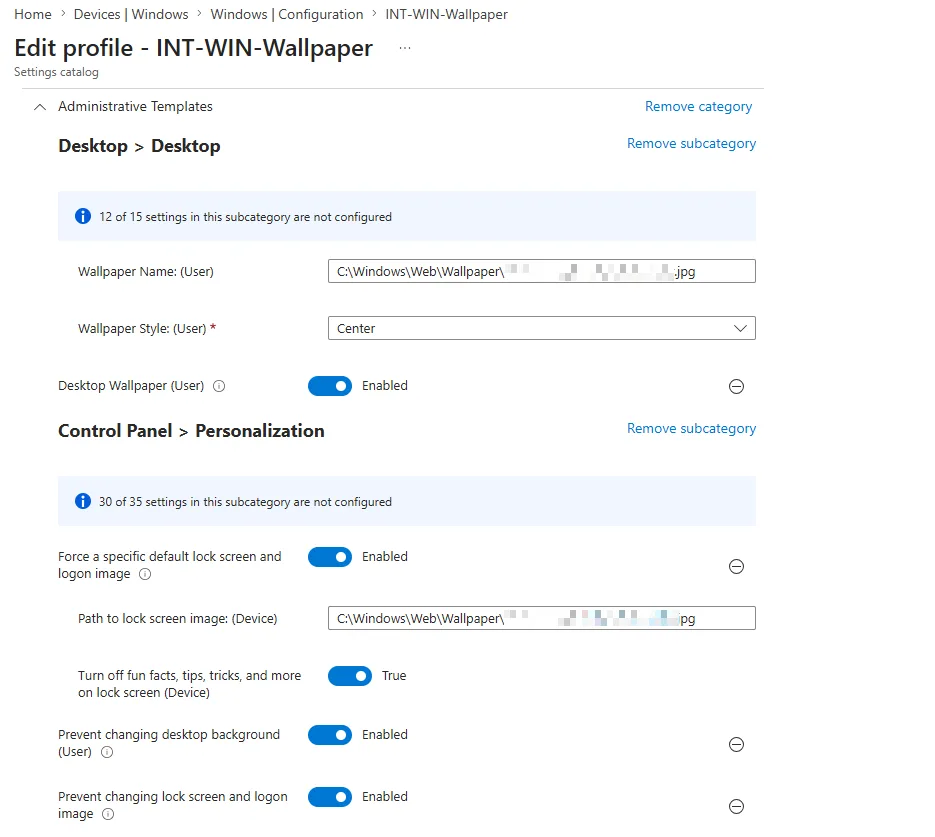
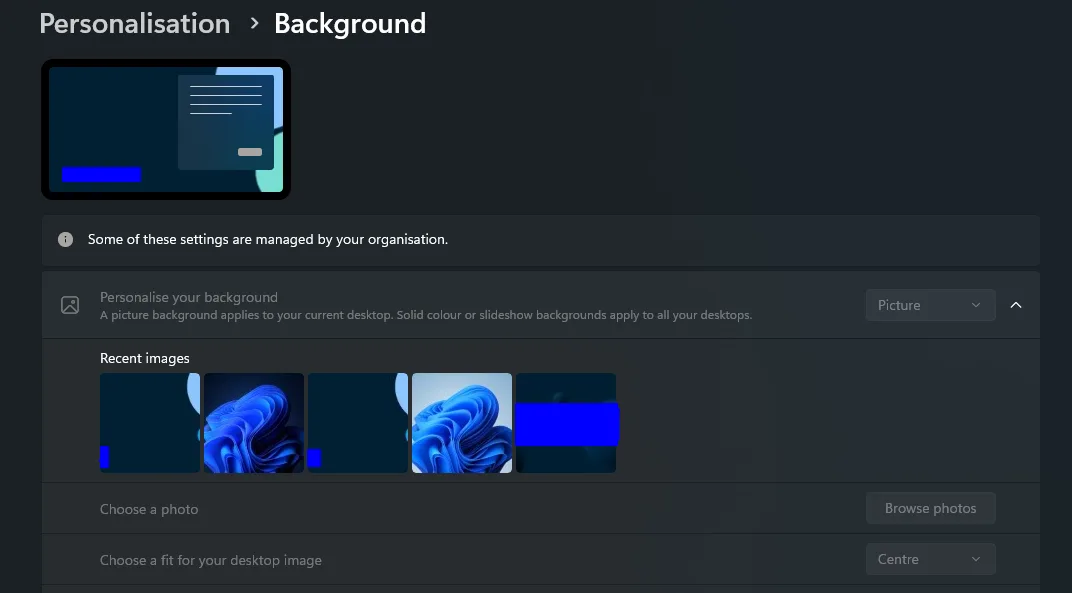
The desktop wallpaper will be set, the lock screen background will be set, and users will be unable to change either setting.
Can I use different images for the lock screen and the desktop?
Not with the policy described here — it points both settings at the same file (C:\Windows\Web\Wallpaper\Wallpaper.jpg). For two different images you’d deploy both files and set each one separately.
Can I set a different wallpaper for different device groups? Yes. The wallpaper ships as an app and the configuration policy is assigned to a group, so you can pair a separate package with a separate policy per group. Assign each group only one wallpaper policy, since every package writes to the same file path.
How do I update the wallpaper without redoing the whole deployment?
Add the new image as a new app version and use supersedence to replace the old package, as described under Adding new versions. The version tag written by install.ps1 is what makes devices pick the change up.
Deploying a corporate wallpaper via Intune is straightforward once the packaging and policy are in place. Using supersedence for version updates keeps the deployment clean and ensures devices always have the latest wallpaper applied.

