Overview
This guide walks you through renewing your Intune Device Enrollment Program (DEP) certificate in Apple Business Manager (ABM). This process is required annually to maintain device enrollment functionality.
The DEP token is the connection between Apple Business Manager and Microsoft Intune. Without a valid token, Intune can no longer manage enrolled Apple devices.
Apple’s Recent ABM Redesign
Apple recently redesigned the Apple Business Manager interface, making the token download option somewhat elusive. The terminology has also shifted:
- Old terminology: “MDM Servers”
- Current terminology: “Device Management Services” (or just “Management”)
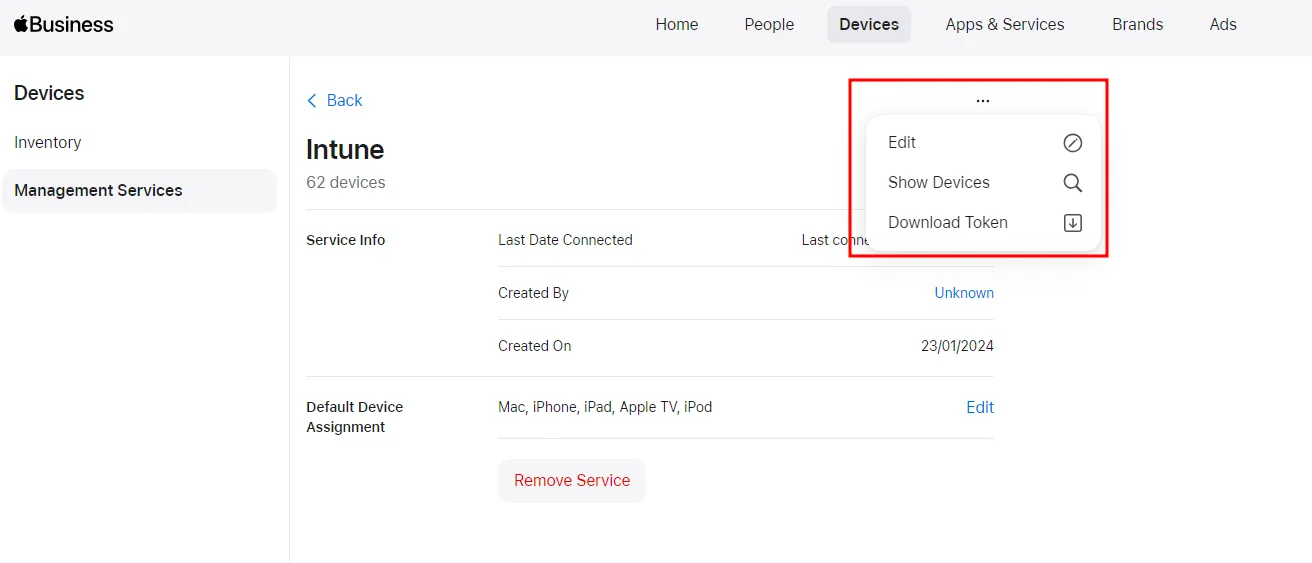
Many Intune administrators have been caught off guard because they can see the Intune management service but initially only see the “Remove Service” option—the token download is hidden behind the three-dot (…) menu.
Step-by-Step Renewal Process
Step 1: Download the Token from Apple Business Manager
- Log in to Apple Business Manager
- Navigate to Devices → Management (or Management Services, depending on your ABM interface)
- Select the existing Microsoft Intune management service
- ⚠️ Do not create a new one — you want to renew the existing relationship
- On the Intune service page, look for the three-dot menu (…) in the top right
- Select Download Token
- Save the downloaded file (should be a
.p7m file)
Step 2: Upload the Token to Intune
- Go to Intune admin center → Devices → Enrollment → Apple → Enrollment program tokens
- Select your existing token from the list
- Click Renew token
- When prompted, enter the Apple ID account you’re using
- Upload the newly downloaded
.p7m file
- Click Save
Critical Points to Remember
✅ Do This
- ✅ Renew the existing token — This preserves your ABM ↔ Intune relationship
- ✅ Use the three-dot menu — This is where the Download Token option is hidden
- ✅ Keep the existing management service — Don’t remove it from ABM
❌ Don’t Do This
- ❌ Create a new management service — This breaks your device assignments
- ❌ Remove the existing Intune service — Devices are tied to this specific service
- ❌ Release devices — Releasing devices removes them from ABM management
Why This Matters
Apple confirms that devices are assigned to a specific device management service. When you renew the token belonging to that service, you preserve the management relationship. If you remove the service and create a new one, you’ll need to re-enroll all your devices.
Troubleshooting
Can’t Find the Token Download Option?
- Look for the three-dot menu (…) on the Intune service page
- If you only see “Remove Service,” check that you’ve clicked into the service detail page
- Try refreshing the page in ABM
Token Upload Fails?
- Verify the file is
.p7m format
- Ensure you downloaded from the correct management service
- Check that the Apple ID entered matches the one used to create the certificate
Devices Showing Errors After Renewal?
- Wait 15-30 minutes for the change to sync to devices
- Force refresh on devices: Settings > General > VPN & Device Management > Refresh
- If errors persist, contact Microsoft Support with your ABM service ID
Next Steps
After renewing your token:
- Verify the new expiry date is displayed correctly in Intune
- Monitor device check-ins over the next 24 hours
- Mark your calendar for renewal 30 days before the new expiry date
Last updated: 2026-08-13


