How to prevent installation of and publish Microsoft Office add-ins in Office 365. You may not want users to be able to install whatever they want — add-ins can potentially read email and documents and send data to the internet.
Disable Add-ins in Outlook
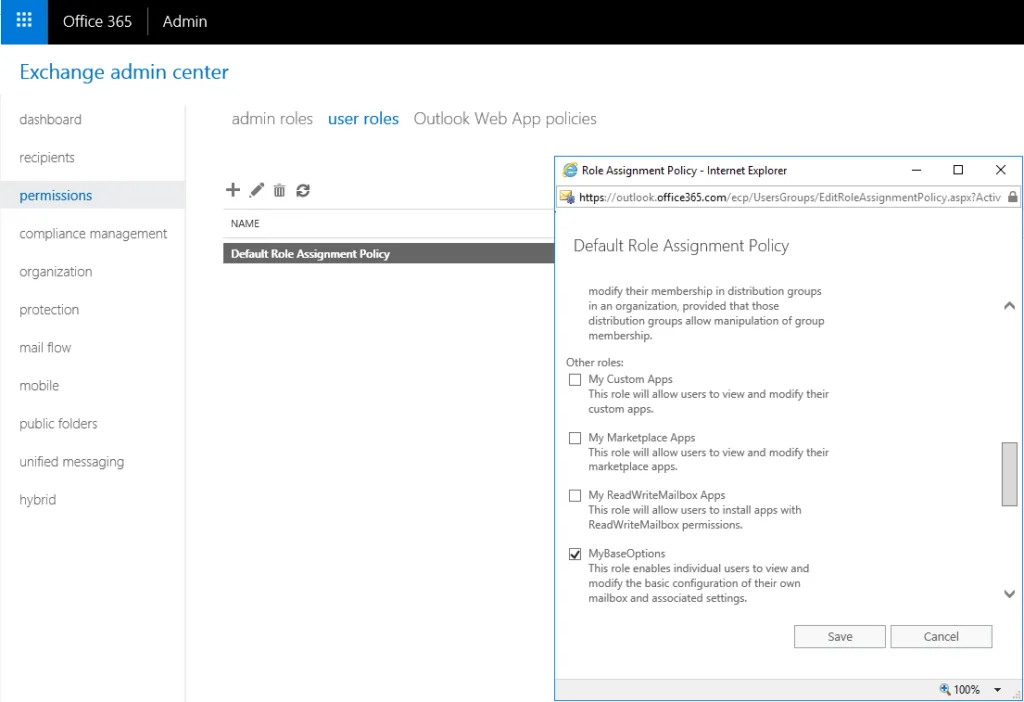
Modify the default role assignment policy in Exchange admin center to remove these roles:
- My Marketplace Apps — Allows installing Office Store add-ins
- My Custom Apps — Allows installing custom add-ins
- My ReadWriteMailbox Apps — Allows installing add-ins that request ReadWriteMailbox permission
Find this in Exchange admin center > Permissions > User roles > Default Role Assignment Policy.
Disable Add-ins in Other Office Apps
- Go to the Microsoft 365 admin center.
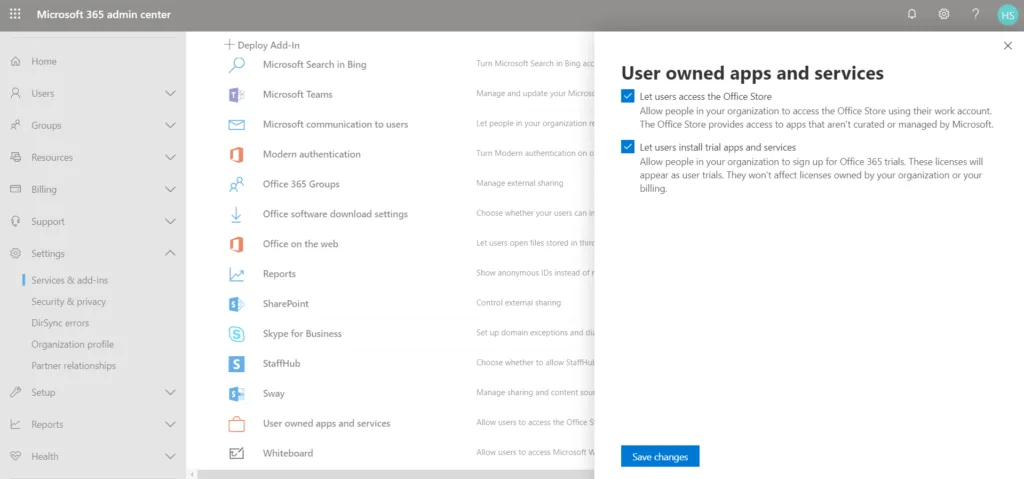
- Open Settings > Services & add-ins > User owned apps and services.
- Untick:
- Let users access the Office Store
- Let users install trial apps and services
Publish Approved Add-ins
Using Centralized Deployment, you can make approved add-ins available:
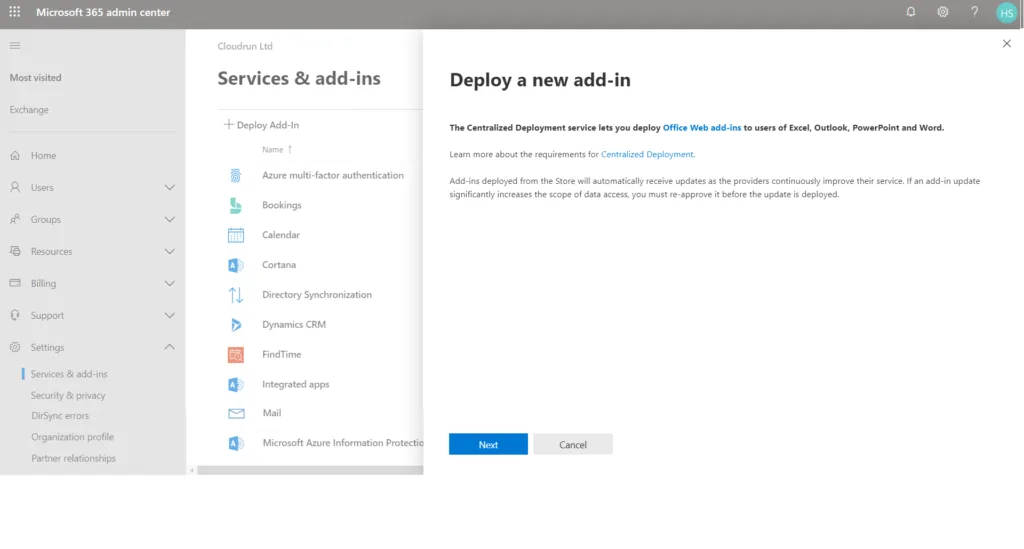
- In the Admin Portal go to Settings > Services & add-ins > Deploy Add-in.
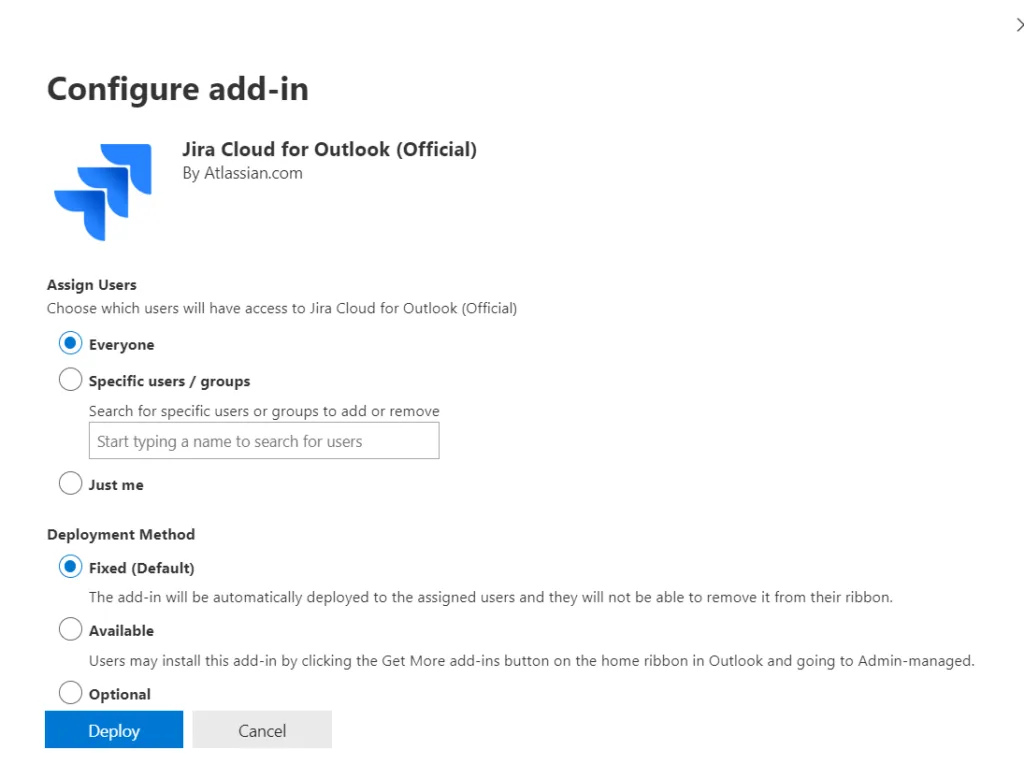
- Specify who has access (recommend using a mail-enabled security group).
- Choose Available or Optional deployment.
- Add users to the group as needed — the add-in will appear automatically.