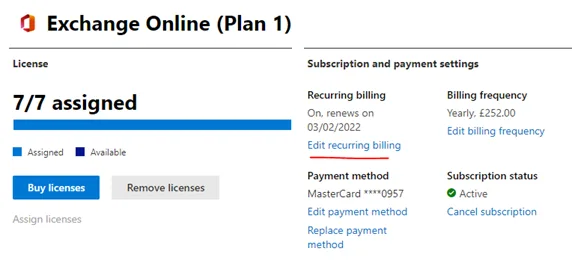
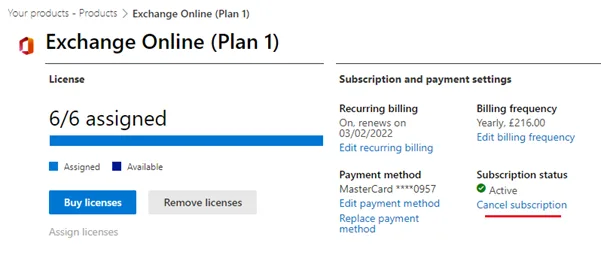
Microsoft 365 licensing can be confusing. There is a lot of conflicting information and advice out there, even on Microsoft’s own website. This guide attempts to demystify these processes so you can understand the differences and implications.
In short: an annual commitment is a 12-month subscription term that gets you a lower per-user price than month-to-month billing. It is not a lock-in on the direct-from-Microsoft plans — but it is, if you buy through a partner.
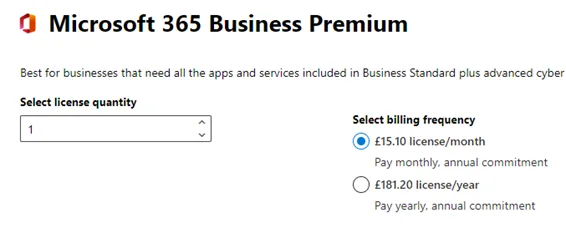
“Annual commitment” describes the term of the subscription, not the payment frequency. You sign up for a 12-month subscription and, in exchange, pay a lower price per user than you would on month-to-month billing. You are usually still billed monthly — although you can choose to pay the whole year upfront.
The catch is that the rules differ depending on who you buy from, which is where most of the conflicting advice online comes from:
| Where you buy | What “annual commitment” means |
|---|---|
| Direct from Microsoft | A 12-month price plan, billed monthly or annually. You can cancel or change it at any time and the refund is prorated. |
| Through a partner (CSP) | A 12-month agreement with that partner. You can add licences at any time, but you generally cannot reduce the licence count before the term ends without paying out the remaining months. |
If you are unsure which applies to you, check whether your invoices come from Microsoft or from a partner: the same phrase means two different things.
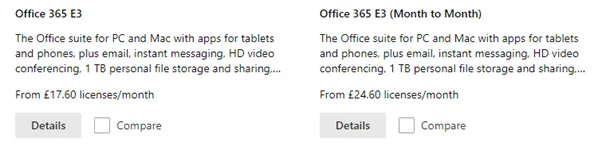
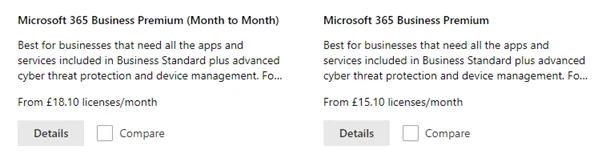
Some products have a month-to-month option as well as an annual commitment option. These are the same products — one is just cheaper. Buying direct from Microsoft, annual commitment does not actually commit you to keeping these licenses for a whole year as the name implies.
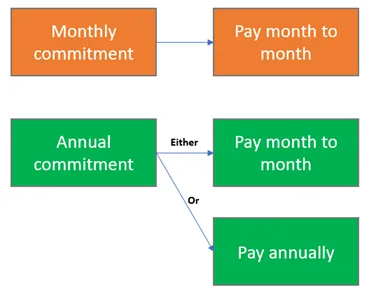
According to Microsoft:
Buying direct from Microsoft, you can still cancel annual commitment whenever you want without penalty. You can cancel completely or change to another product and you’ll just pay the difference. This does not apply to CSP agreements bought through a partner — see the table above.
Plans available month to month include: Microsoft 365 Business Premium, Standard, Basic, Apps for Business, M365 E3/E5, Office 365 E1/E3/E5, and more. Standalone plans (EMS, Azure AD Premium, PowerBI, Windows 10 Enterprise) are annual commitment only.
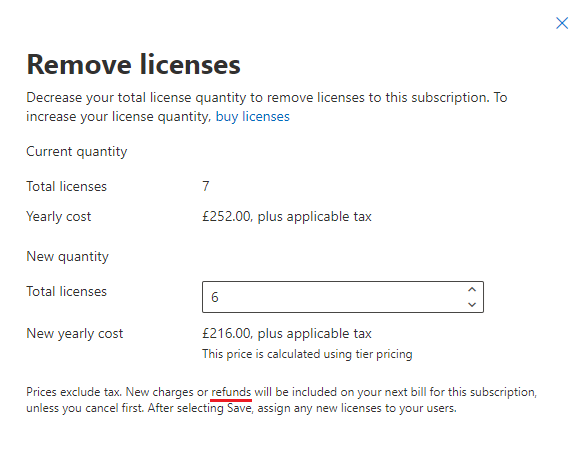
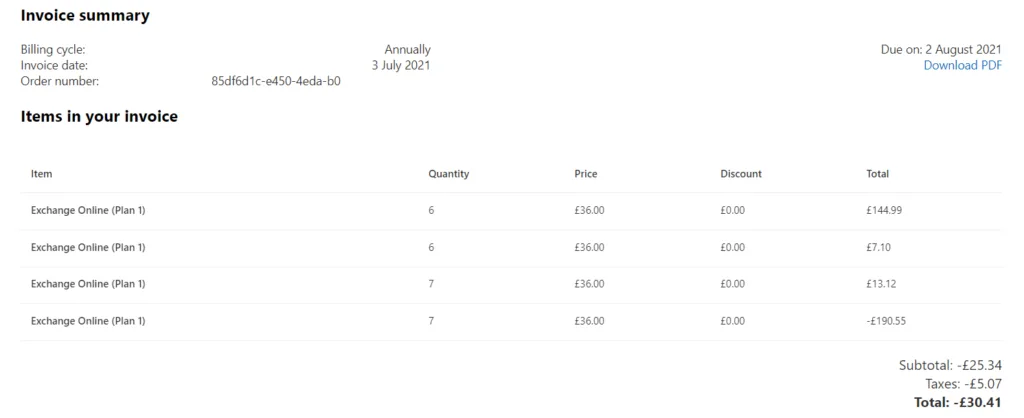
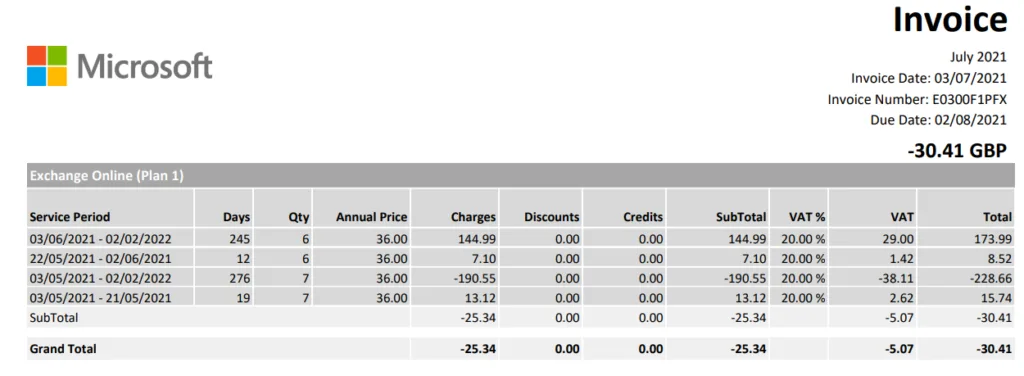
On the direct-from-Microsoft plans, annual commitment subscriptions apparently incur a one month penalty if cancelled early (per the Microsoft Online Subscription Agreement). However, in testing there wasn’t even any penalty — it was just prorated. I contacted Microsoft and was told the refund is prorated with no penalty.
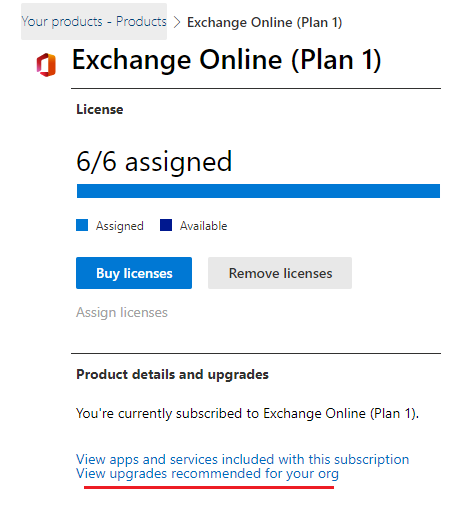
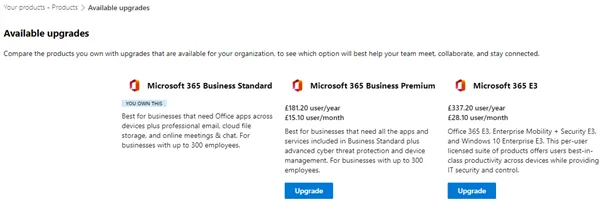
Upgrading all users: Go to Your Products > Select product > View upgrades to upgrade all licenses.
Upgrading some users: Buy the new license, assign to users, then remove the old licenses.
Cancelling a subscription: You have two options:
| Feature | Monthly Commitment | Annual Commitment |
|---|---|---|
| Billing | Pay month to month | Pay monthly or upfront for the year |
| Discount | None — full price | Cheaper — discount applied |
| Cancel anytime | ✅ Yes | ✅ Yes (prorated refund) |
| Early termination fee | None | None in practice (prorated) |
| Best for | Short-term / trial use | Long-term / committed use |
What does “annual commitment” mean in Microsoft 365? It is the 12-month price plan. You commit to the subscription for a year and, in return, pay less per user than you would on month-to-month billing. You are normally still billed monthly.
Is annual commitment cheaper than monthly? Yes. The per-user price is lower than month-to-month billing, so if your headcount is stable it is almost always the better value.
Can I cancel an annual commitment? It depends where you bought it. Direct from Microsoft: yes, whenever you want, with a prorated refund. Through a partner (CSP): generally not before the end of the 12-month term without paying for the remaining months.
Do I have to pay the whole year upfront? No. Annual commitment describes the term, not the payment frequency. You can normally choose to pay monthly.
Which plans are annual commitment only? Standalone plans such as EMS, Azure AD Premium, Power BI and Windows 10 Enterprise are annual commitment only. Core Microsoft 365 and Office 365 plans are usually available both ways.
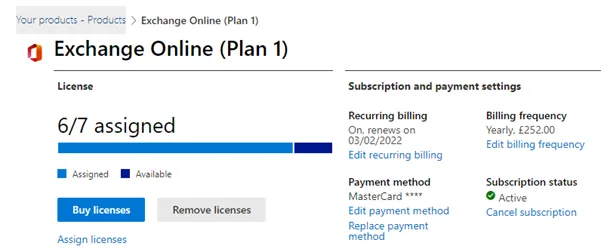
Microsoft 365 licensing is very flexible. You can add or remove licenses whenever you want without penalty, even if you’ve paid for the whole year upfront. When buying licenses, choose annual commitment since they are cheaper and can still be cancelled anytime.
Need help choosing the right Microsoft 365 licensing for your business? Contact Cloudrun for expert advice tailored to your organisation.