Logo
Increasing Your Account Security with MFA (Multi-Factor Authentication) for Users
Office 365; Security

Increasing Your Account Security with MFA (Multi-Factor Authentication) for Users

26 December 2019 By Hal Sclater

This is how to set up two factor authentication with your Microsoft 365 account, if your tenant has Security Defaults enabled. This process needs to be done within 14 days. Once completed, you will occasionally be required to use the Authenticator app to confirm your identity when logging in.
On Your PC or Mac

  1. Go to www.office.com and log in.
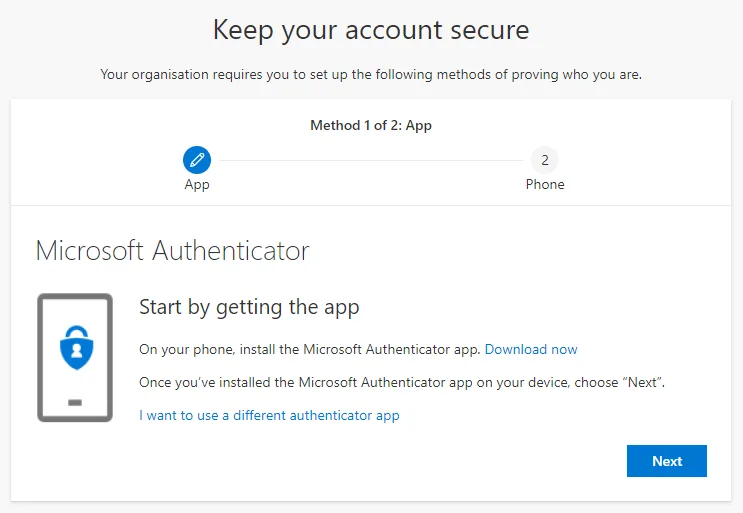
  2. You will be requested for more information — click Next.
  3. Follow the prompts to set up the Microsoft Authenticator app.

On Your Phone

Security Defaults 3

Security Defaults 4

Security Defaults 5

Security Defaults 6

  1. Download Microsoft Authenticator from the Apple App Store or Google Play Store.
  2. Open it, tap the + in the corner, then Add Work or school account.
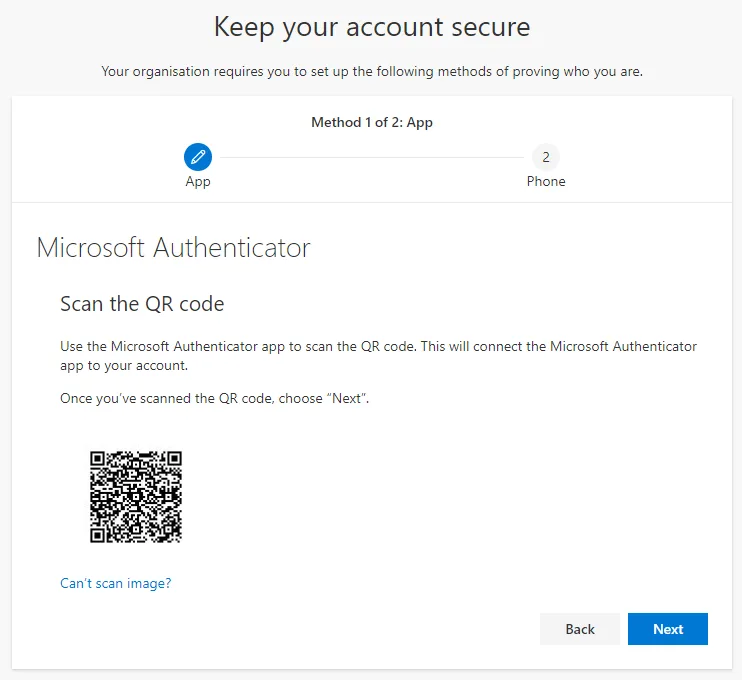
  3. Choose Scan the QR code.
  4. On your PC, click Next and scan the QR code shown on screen.
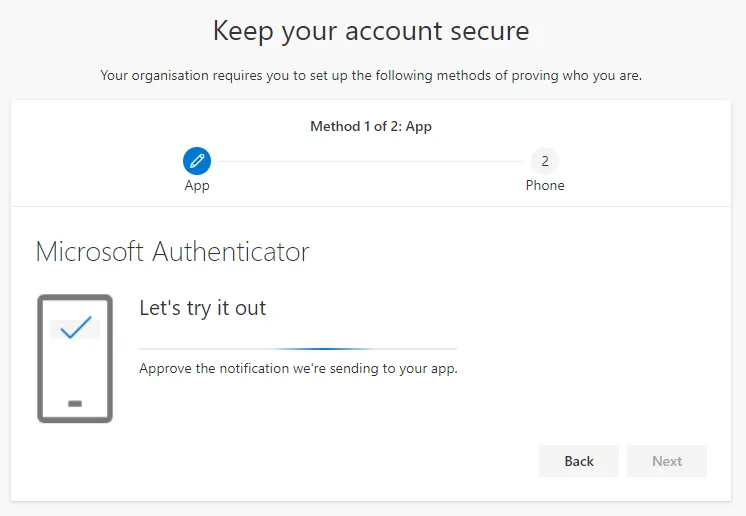
  5. You will receive a notification through the app to confirm it has been configured correctly.

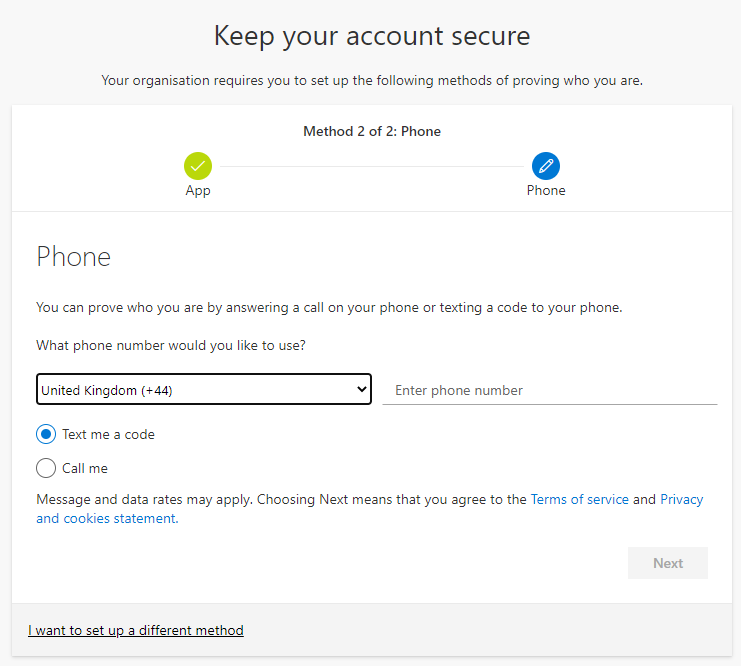
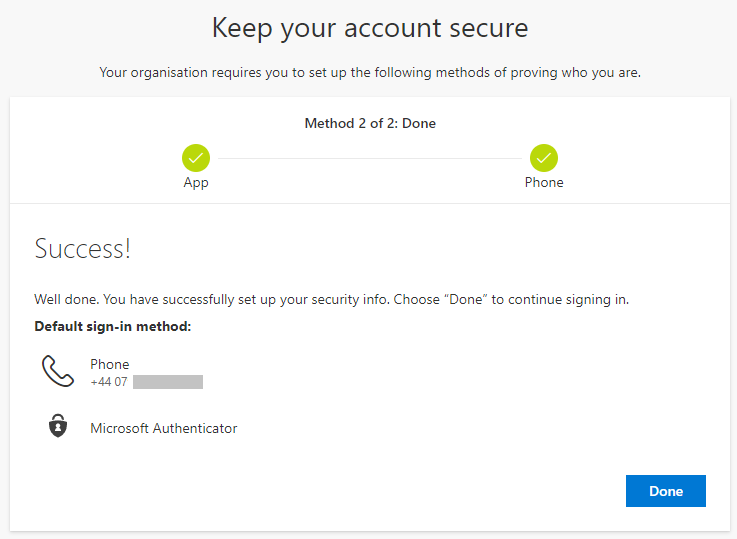
Next, you will be prompted to add a phone number as an alternative authentication method. This is useful if you don’t have your phone or have replaced it.

We also recommend going into the Authenticator app settings and turning on iCloud Backup (iPhone) so you can recover the app configuration if you lose your phone.

You can always change this information later by visiting https://aka.ms/mfasetup.

If you have changed your phone and are unable to access your account, see Gaining access to your Office 365 account if you have replaced your phone and have MFA enabled.

Security Defaults 1