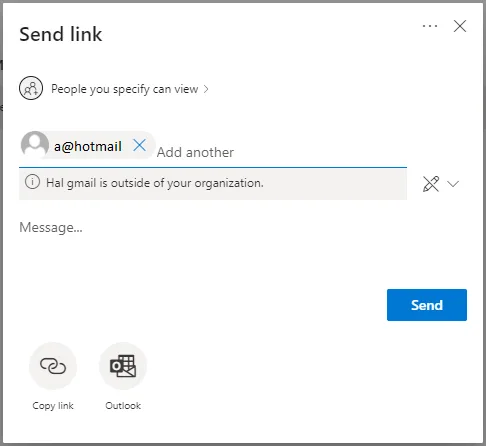
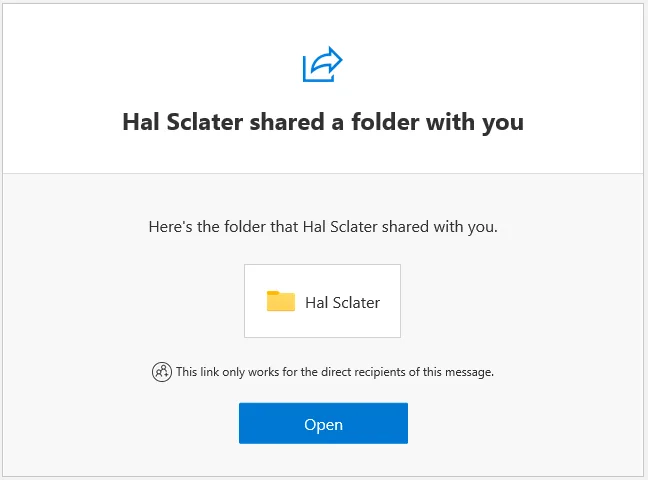
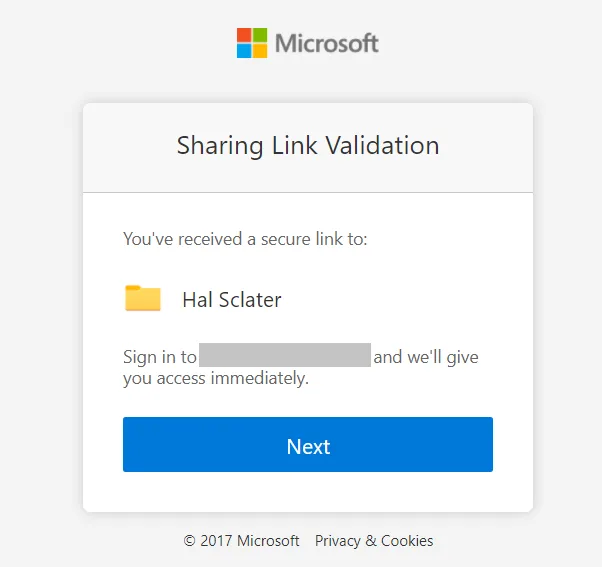
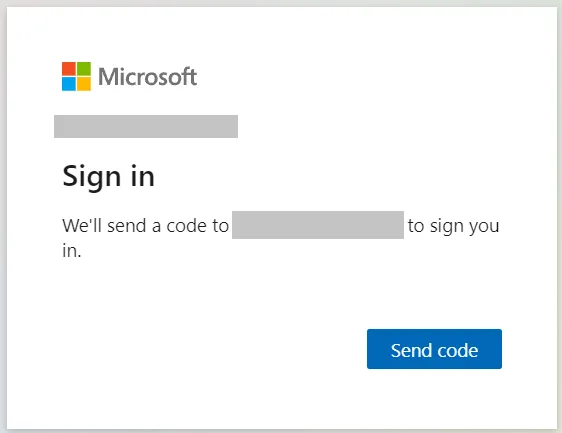
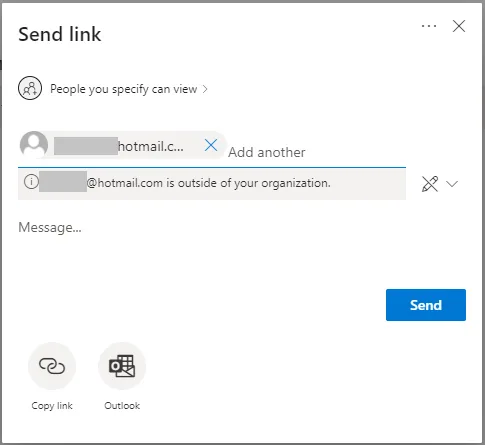
This is a fairly common issue when sharing files and folders with external users in SharePoint, Teams, or OneDrive.
The Issue
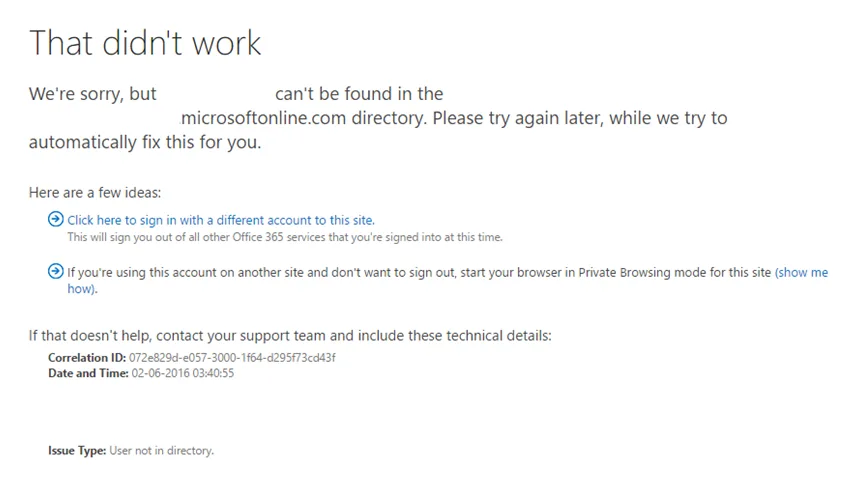
When an external user clicks the link in the sharing email, they see an error saying their account “can’t be found in the directory” — even though the Guest account exists in Azure AD.
What Causes This?
The issue happens when the user clicks the link whilst signed in with a different Microsoft account (either work/school or personal).
The Fix
- Log in to the Azure portal.
- Go to Azure Active Directory > Users.
- Search for the external user by email address.
- Delete the guest account.
- Go to Deleted users and permanently delete the user.
- In SharePoint, remove the user from the shared file or folder permissions.
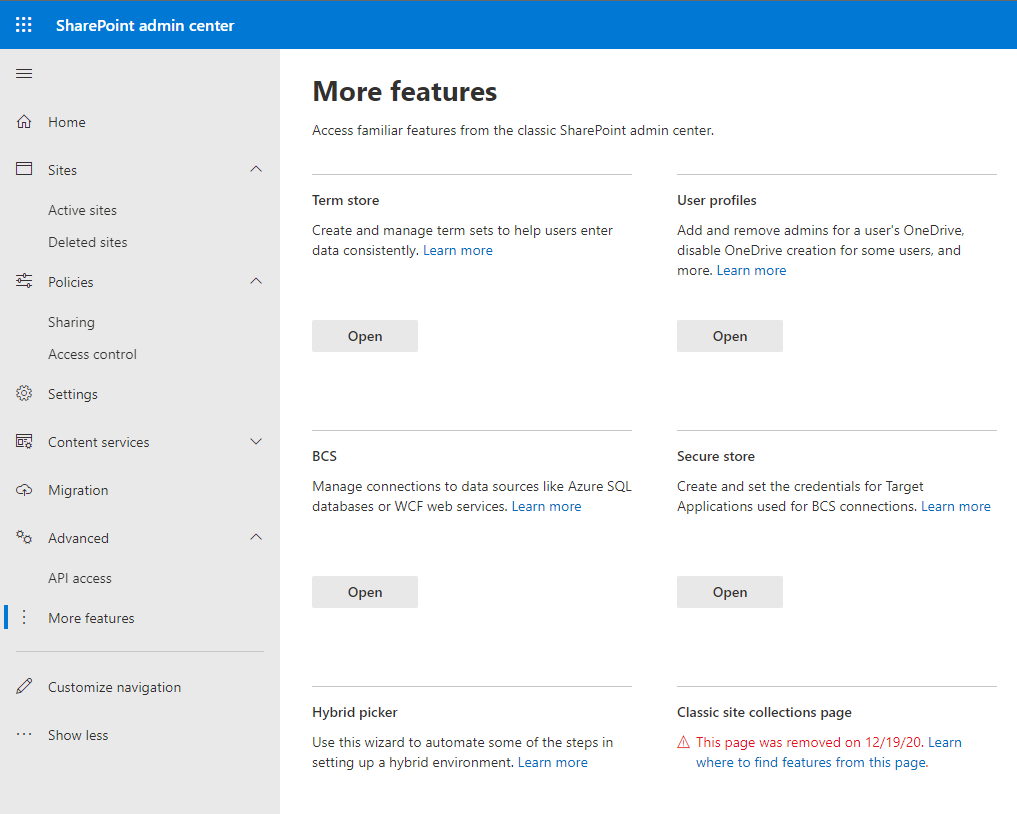
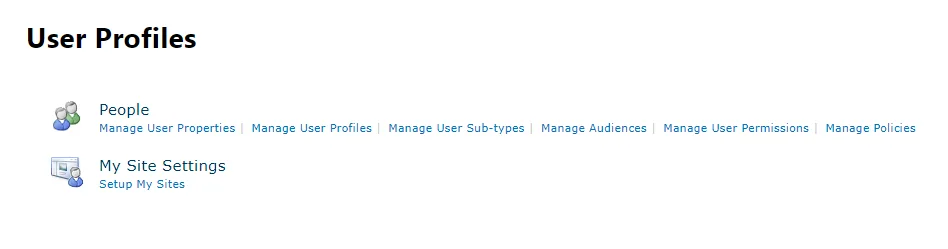
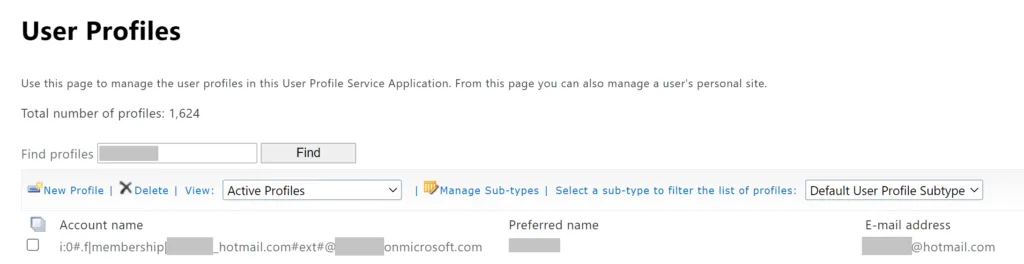
- As a SharePoint admin, check SharePoint admin center > More features > User profiles > Manage User Profiles and delete the user if found there.
- Share the file or folder again — this will create a new guest account.
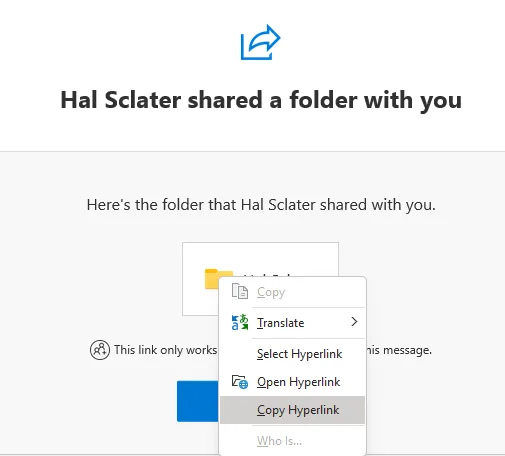
- Instruct the external user to right click the folder icon > Copy Hyperlink, then open an Incognito/Private browsing tab and paste the link there to avoid multiple account issues.
For more information, see Microsoft’s documentation on this error.