
This is how to fix the error when attempting to join a device to Microsoft Entra ID (formerly Azure AD), for instance by signing in during the Windows OOBE (out of box experience) using a Microsoft work or school account.
Something went wrong.
Looks like we can’t connect to the URL for your organization’s MDM terms of use. Try again, or contact your system administrator with the problem information from this page.
This issue occurs because the user does not have an Intune license, and at the same time as joining Entra ID (formerly Azure AD) it’s trying to enroll the machine in Intune MDM. The fix is to therefore stop it from trying to enroll the user, however if your admin account does not have a license you won’t be able to do this. You can therefore fix the issue by getting a trial license of any license containing Microsoft Entra ID P1 (formerly Azure AD Premium P1), and configuring MDM enrollment settings in Microsoft Entra ID.
The fix is to configure the MDM User Scope in Microsoft Entra ID, depending on whether you want devices to automatically enroll in Intune or not.
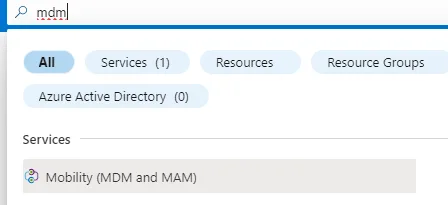
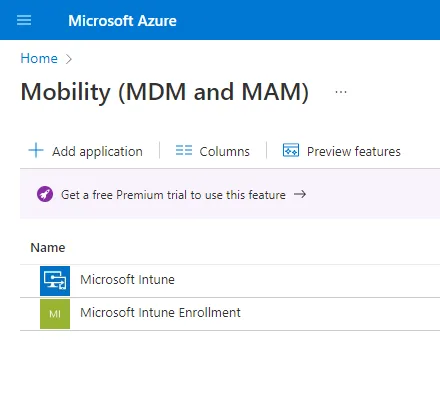
If your admin account does not have a license you may see the following error (if not you don’t need to get a temporary license).
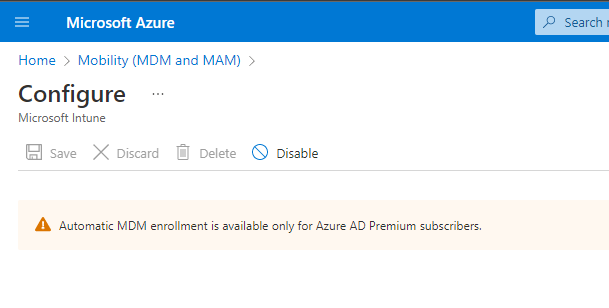
So, we can get a trial license for free (assuming you have not used all your trials for everything).
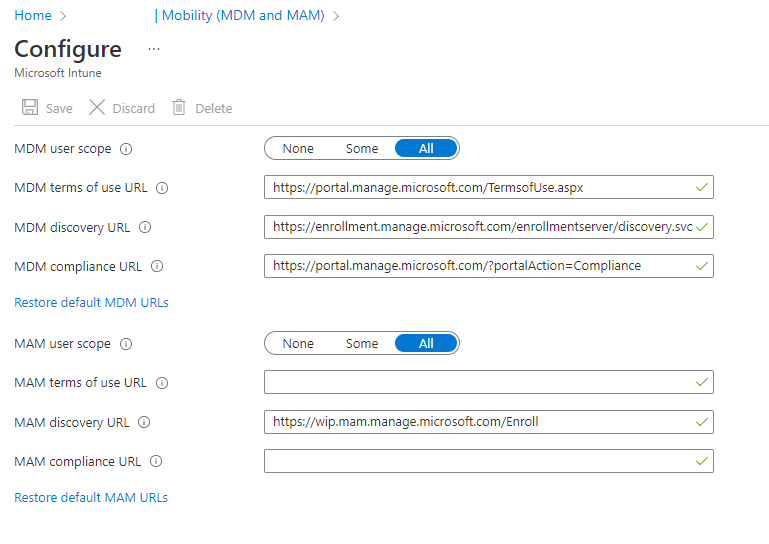
If you don’t see any URLs, click the Restore default links.
Now you have 3 options:
user.assignedPlans -any (assignedPlan.servicePlanId -eq "8e9ff0ff-aa7a-4b20-83c1-2f636b600ac2" -and assignedPlan.capabilityStatus -eq "Enabled")Once you’ve done this, try signing in to the computer again and it should work. Note that you may need to reboot a computer if you had already tried and failed to join before making the changes.
If you see this error after configuring MDM scope, the user account doesn’t have an Intune license assigned. Assign a license containing Microsoft Intune (or Microsoft Entra ID P1) from the Microsoft 365 admin centre.
Check that device enrollment isn’t restricted in Intune → Device enrollment → Enrollment restrictions. If you’ve set platform restrictions, ensure Windows MDM enrollment is allowed.
This is the most common Entra ID device join failure, and the wording varies between Windows builds — you may see “We can’t connect to the URL for your organization’s MDM terms of use”, “Looks like we can’t connect to the URL for your organization’s MDM”, or the vaguer “Something went wrong — try again later”. They all mean the same thing: during the join, Windows was handed an MDM enrolment URL it could not reach, so enrolment stalled.
Why it happens. When a user joins a device, Entra ID redirects them to the MDM terms of use URL configured under Entra ID → Mobility (MDM and MAM) → Microsoft Intune. If that URL is wrong or unreachable from the device, the join never completes.
Fixes, in order:
https://enrollment.manage.microsoft.com/enrollmentserver/discovery.svc, and it must be HTTPS. Confirm against your own tenant before changing it — a wrong value here is itself a common cause of this error.*.manage.microsoft.com and *.enrollment.manage.microsoft.com on port 443, and test from the device itself.dsregcmd /leave), reboot, and join again.Q: What should the MDM terms of use URL be for Intune?
https://enrollment.manage.microsoft.com/enrollmentserver/discovery.svc — the same value is used for the MDM discovery URL and the terms of use URL in the Intune configuration.
Q: The URL is correct but the error persists. What next? It is almost always network filtering. Test from the device with a mobile hotspot: if the join succeeds there, a firewall or proxy rule is the cause.
This generic error usually has the same root cause as the MDM terms of use error above — check that first. If the URL and network are both fine, it can also appear when the deployment is temporarily unavailable, so retry after a few minutes before changing anything.
Q: Do all users need an Intune license? No. Only users who need MDM enrollment require a license. Set the MDM user scope to Some and use a dynamic group (as shown above) to target only licensed users.
Q: Will changing MDM scope affect existing enrolled devices? No. Changing the scope only affects new device enrollments. Already-enrolled devices remain managed.
Q: Can I skip Intune enrollment entirely? Yes. Set both MDM and MAM user scopes to None to join devices to Microsoft Entra ID without Intune enrollment.
This error typically appears during device enrollment when the system cannot find or launch the Microsoft Authentication Broker. This component is essential for modern authentication flows during Azure AD/Entra ID device join.
Causes:
Fixes:
services.msc, find Web Account Manager, ensure it’s set to Automatic and running.wsreset.exe to reset the Microsoft Store and re-register system apps.Computer Configuration → Administrative Templates → Windows Components → Web Account Manager.sfc /scannow followed by DISM /Online /Cleanup-Image /RestoreHealth.If none of the above resolves the issue, consider creating a new local admin profile and attempting the device join from there.

