
This is a common issue seen with help desk users not following established processes, or just not having the knowledge to create shared mailboxes properly.
Issues can occur when someone creates the mailbox as an Office 365 mailbox in Exchange on-prem EAC (a normal user mailbox), disables the user account in AD, waits for sync, then converts the mailbox to shared in Exchange Online. This causes a problem because Exchange on-prem still thinks it’s a user mailbox, and the AD attributes have been set incorrectly.
The only supported Microsoft way to fix this is to migrate the mailbox back to on-prem, convert it to shared, and then migrate to Exchange Online again. However, there’s an easier way by modifying the AD attributes directly.
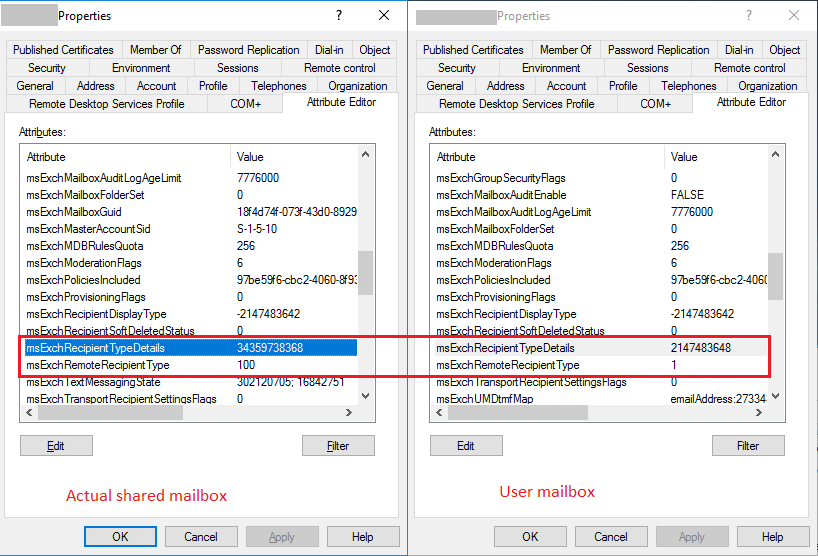
First, make sure Advanced Features are enabled in ADUC. Find a correctly created shared mailbox and an incorrectly created one, then check these attributes:
| AD Attribute | Shared Mailbox | User Mailbox |
|---|---|---|
| msExchRecipientDisplayType | 34359738368 | 2147483648 |
| msExchRecipientTypeDetails | 100 | 1 |
Update the user mailbox attributes to match the shared mailbox values above. Once done, refresh the on-prem EAC — the mailboxes should now appear under shared mailboxes correctly. After AD Connect sync runs, any licensing and permissions issues should be resolved.
This problem is nearly always caused at creation time rather than fixed afterwards — see how to create users and shared mailboxes in an Exchange hybrid environment for the supported New-RemoteMailbox -Shared process.

