
Remote Help is Microsoft’s secure, cloud-based tool for remote assistance in Intune. It was recently included in Microsoft 365 E3 and E5 and no longer requires a separate Intune Suite (or standalone Remote Help) licence.
This guide covers enabling Remote Help for the tenant and assigning the RBAC permissions that let help desk staff use it.
Microsoft.RemoteHelp).Note: since admin accounts are generally not licensed or logged into Ps, it should be set up by an admin, but then you should launch from the Intune portal as a normal user, with Intune license, remote help installed, and the helpdesk operator role.
Optional settings worth reviewing on the same page:
- Allow Remote Help to unenrolled devices — leave off unless you specifically need it.
- Disable chat — controls the in-session chat window.
Remote Help capabilities are controlled by the Help Desk Operator Intune role. Permissions are granted to the users in a role assignment’s admin group for the devices/users in its scope groups.
Create an Entra ID security group for the operators, e.g. SG-HelpDeskOperator-Admins, and add your help desk staff to it.
In the Intune admin center go to Tenant admin > Roles > Help Desk Operator > Assignments > Assign.
Configure the assignment:
SG-HelpDeskOperator-Admins (who gets the permissions).Review and create the assignment.
The Help Desk Operator role grants two Remote Help permissions:
| Permission | Effect |
|---|---|
| View screen | Operator can view the user’s screen. |
| Take full control | Operator can take control of the session (still requires the user to consent at connect time). |
You can create a custom role if you want to grant view only without full control.
Whilst somewhat basic compared to other remote control software, it’s certainly an improvement over Teams screen sharing, features include:
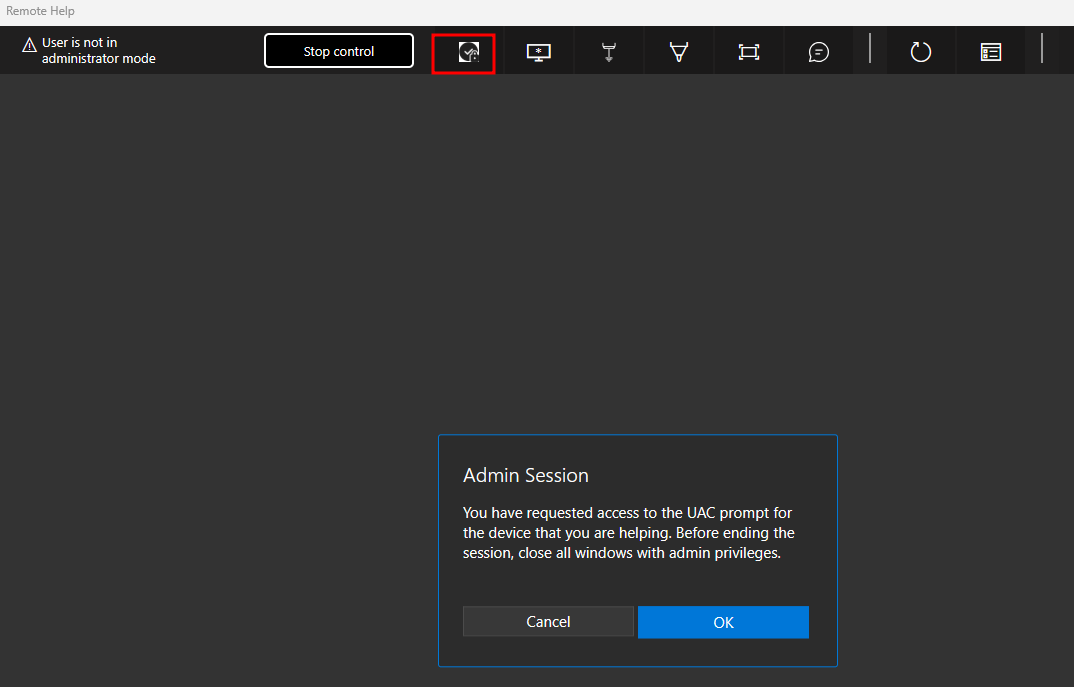
This image shows how to enable UAC:
Microsoft Intune admin center

