Combined SSPR and MFA registration makes things simpler for new internal and external (Guest) users alike. Whilst all new Azure AD tenants created after August 15th 2020 will be automatically enabled for combined registration, this currently needs to be turned on manually for older tenants.
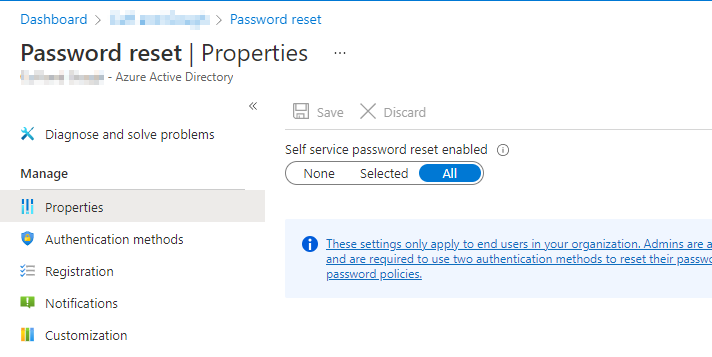
Navigate to portal.azure.com, go to Azure Active Directory > Password Reset and select All.
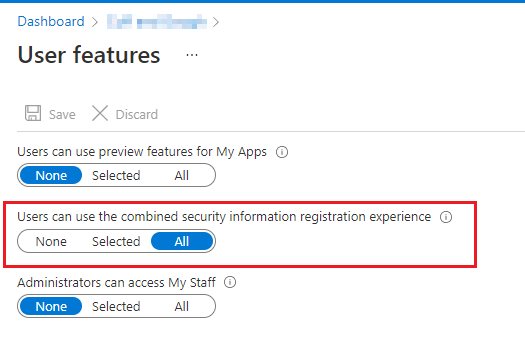
Go to AAD > User Settings > Manage user feature settings and set Users can use the combined security information registration experience to All.
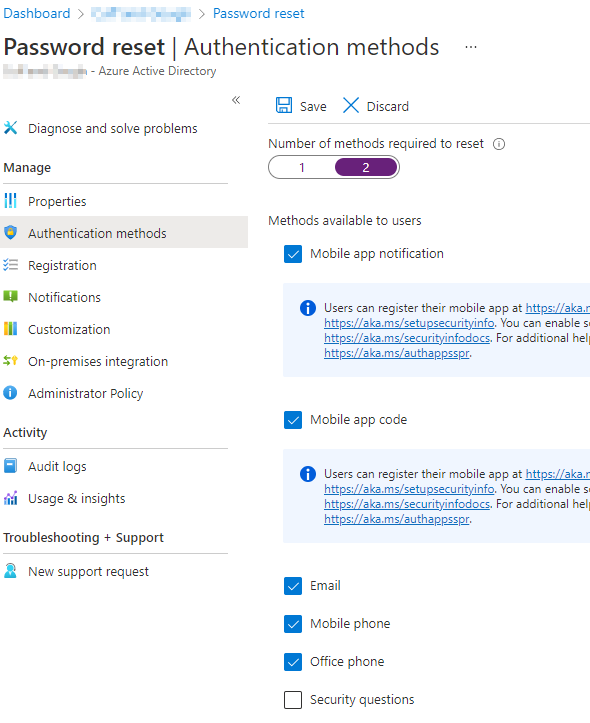
In Password reset > Authentication methods, choose the required options. We recommend all options apart from security questions, and choose 2 methods at the top. This will also affect the number of options that users are required to set up when enrolling for MFA (for internal users only — Guests will only need to add one).
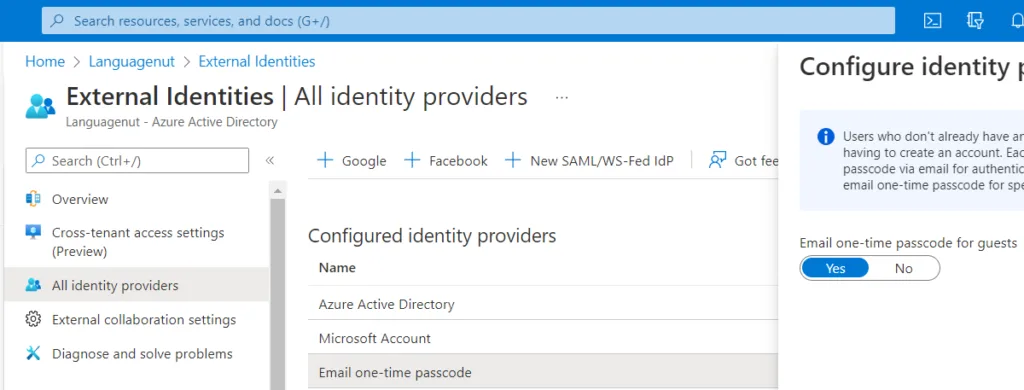
Go to External Identities > All Identity providers > Email one-time passcode for guests and enable it.
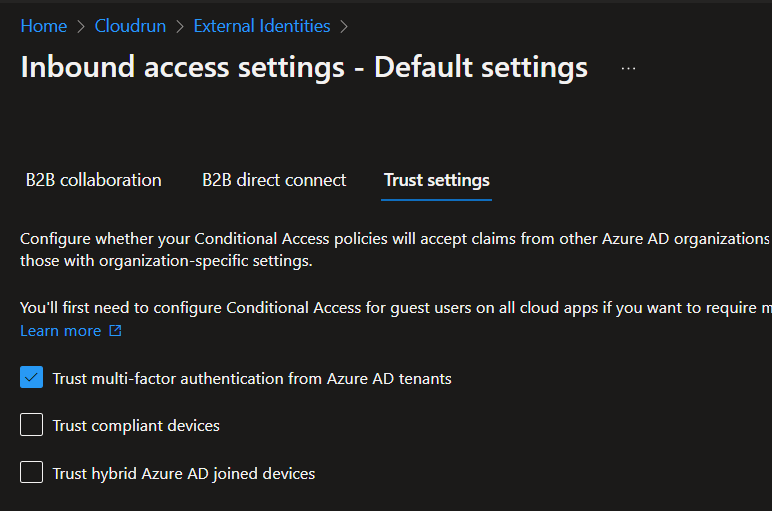
If you require external users to use MFA, you may want to trust their own MFA to avoid potential double MFA issues.
Go to AAD > External Identities > Cross-tenant access settings > Default settings > Edit inbound > Trust settings > Trust MFA from Azure AD tenants.
Depending on your security requirements, you can either add individual tenants to trust, or change the default settings. Note that we have seen issues when enabling the default trust settings for MFA, whereby Microsoft account users (not Azure AD) get into an infinite loop. It is therefore safer to add individual tenants.
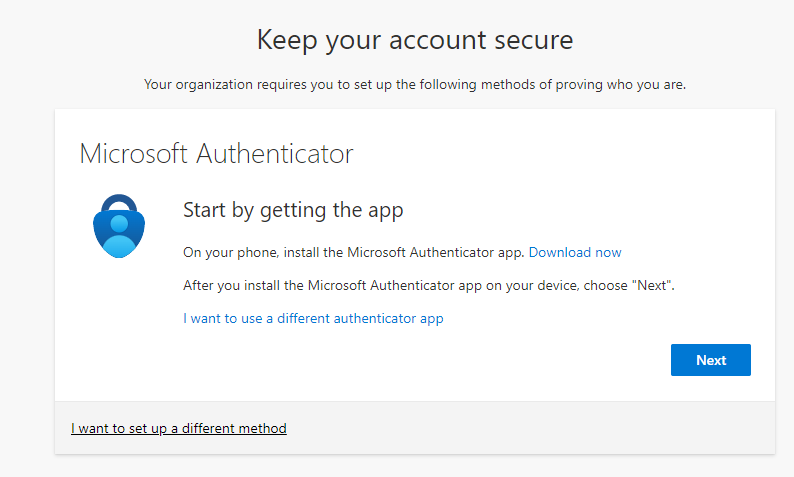
This then gives you the new MFA setup process screens, the same as if you enable security defaults, and also applies to Guests, unless the Guest already has MFA configured in their own tenant.
For more information see: