Enable Web Sign-in on Windows 11 with Intune
Web Sign-in on Windows 11 allows users to sign in to their Entra ID-joined devices using modern authentication methods such as the Microsoft Authenticator app, Temporary Access Pass (TAP), or SAML federated identity providers—without needing a traditional password.
This guide walks through the prerequisites, Intune configuration, verification steps, and a registry-based testing method.
Prerequisites
To enable Web Sign-in on Windows 11, your device must be:
- Microsoft Entra ID (Azure AD) joined
- Running Windows 11 22H2 or later with recent updates installed
- Connected to the internet during sign-in
Important: Web Sign-in is not supported on domain-joined or Microsoft Entra hybrid-joined devices. [learn.microsoft.com]
Enable using Intune (recommended)
- Open the Microsoft Intune admin center.
- Go to Devices → Windows → Configuration profiles.
- Create a Settings catalog profile.
- Add the following setting:
- Category: Authentication
- Setting: Enable Web Sign In
- Value: Enabled
- Assign the policy to your devices and allow them to sync. Note that I create a specific Windows configuration policy for devices and include this setting, so that it is enabled for any user logging in to the machine. [learn.microsoft.com], [petervanderwoude.nl]
Verify on the device
After the policy applies, test Web Sign-in:
- Sign out or lock the device.
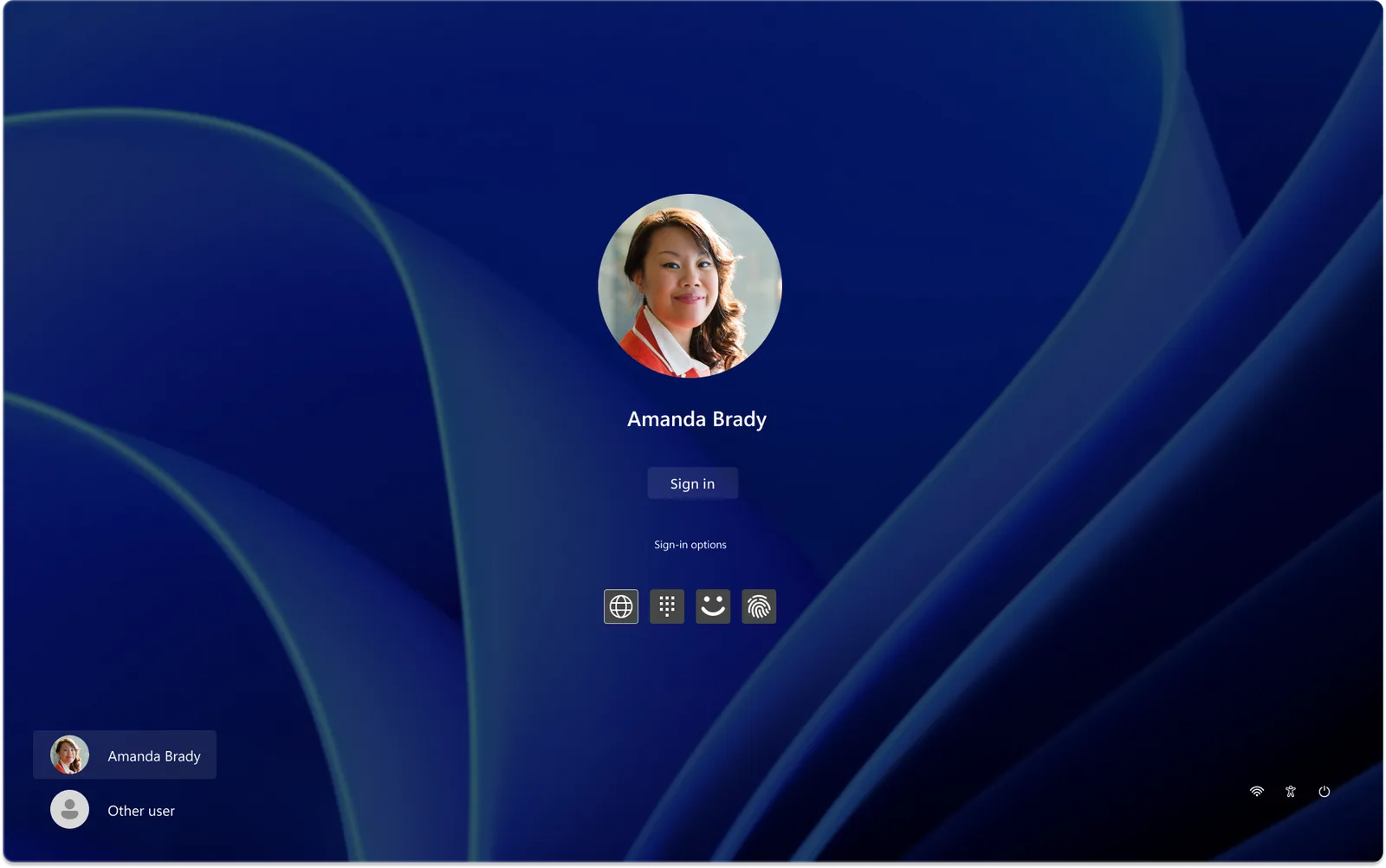
- On the sign-in screen, select Sign-in options.
- Choose the Web Sign-in icon.
- Sign in using your Entra ID credentials, Temporary Access Pass (TAP), Microsoft Authenticator, or other supported methods. [learn.microsoft.com], [petervanderwoude.nl]
For testing without Intune
You can enable the policy locally via the registry for testing purposes:
HKEY_LOCAL_MACHINE\SOFTWARE\Microsoft\PolicyManager\current\device\Authentication
Create a DWORD value:
| Name |
Value |
EnableWebSignIn |
1 |
Then sign out and check Sign-in options for the Web Sign-in provider.
Common use cases
- Temporary Access Pass (TAP) — Issue time-limited credentials for onboarding or password recovery.
- Passwordless sign-in with Microsoft Authenticator — Approve sign-in requests from your phone.
- Windows Hello for Business PIN reset — Recover or reset a forgotten PIN.
- Federated SAML identity providers — Sign in using an external identity provider integrated with Entra ID.