Logo
Configure WordPress SSO with Azure AD and OneLogin
Azure AD

Configure WordPress SSO with Azure AD and OneLogin

7 June 2019 By Hal Sclater

Note: This plugin has not been updated and is no longer compatible with WordPress 5.9+, so is no longer recommended.

How to enable Single Sign-On (SSO) to WordPress using Azure AD and the OneLogin SAML SSO plugin.

This requires Azure AD Premium (P1 or P2) in addition to your normal Office 365 subscription.

Preparation

  • Take a WordPress backup.
  • Make sure you have a local WordPress admin account.

Install the OneLogin SAML SSO Plugin

Install the OneLogin SAML SSO plugin.

Configure SSO

WordPress

Onelogin 1

  1. Go to Settings > SSO/SAML Settings.
  2. Configure a Service Provider Entity ID.
  3. Click Go to the metadata of this SP and save it as an XML file.

Azure AD

  1. Go to Azure AD > Enterprise Applications > New Application > Non-gallery application.
  2. Click Single sign-on > SAML.
  3. Upload the metadata XML file.
  4. Download the Base64 certificate.
  5. Add users/groups to the application.

WordPress (continued)

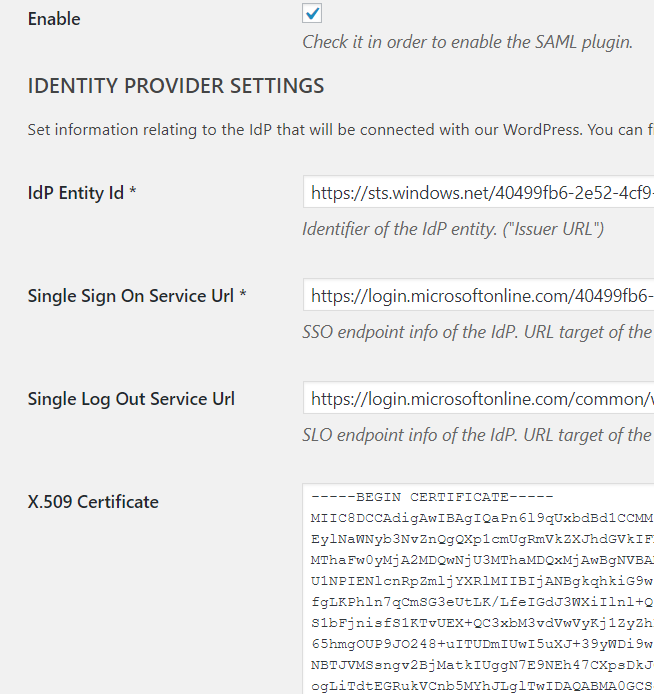
Paste the Azure AD app details into the plugin:
  • Login URL → Single Sign On Service URL
  • Azure AD Identifier → IdP Entity ID
  • Logout URL → Single Log Out Service URL
  • X.509 Certificate → Certificate contents

Attribute Mapping

Onelogin 2

Onelogin 3

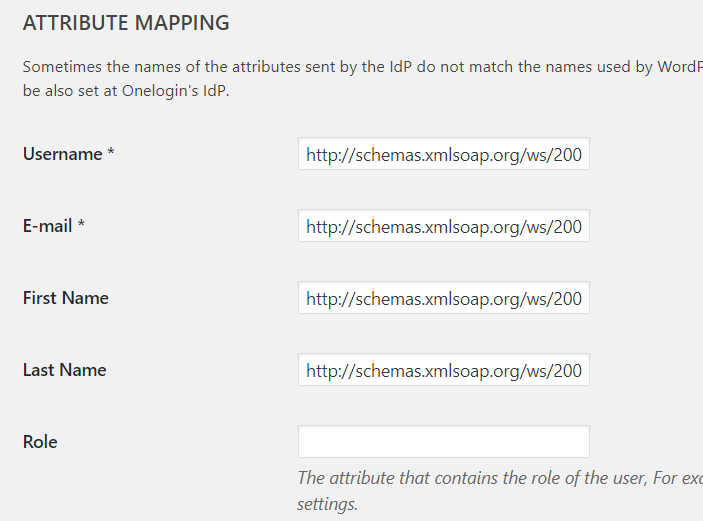
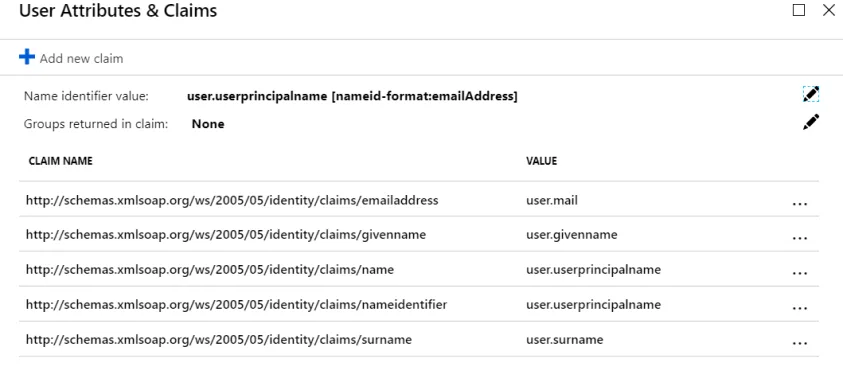
Map user attributes from Azure AD to WordPress. Use email rather than UPN if you want to allow Guest accounts to log in.

Enable Create user if not exists, Update user data, and set Match WordPress account by: E-mail.

Test

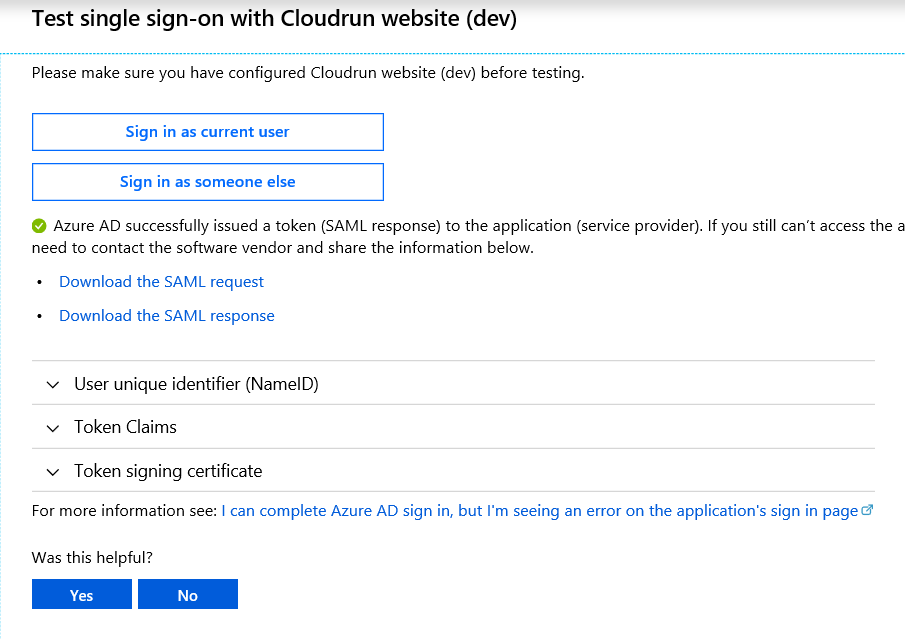
Tick Enable at the top of the plugin and save. You can still log in using wp-login.php as a fallback.

Onelogin 4