
How to secure and manage Azure app consent to make things easier for both users and admins. When first connecting an app to a Microsoft 365/Azure tenant, the requester is prompted to review the permissions and approve the app. If left open, this can be used maliciously (especially since no one reads the permissions). By default the Azure AD app consent configuration is not secure, so it’s recommended to make some changes as documented here.
This article walks you through the recommended settings, as well as how to configure admin consent to suit your environment.
I have seen it recommended that you should disable user consent and then enable admin consent requests as a one-size-fits-all approach. This is only suitable for small to mid-size organisations with a permanent IT presence who can respond to the requests. If configured like this in a large organisation, you will likely be bombarded with requests for access to apps.
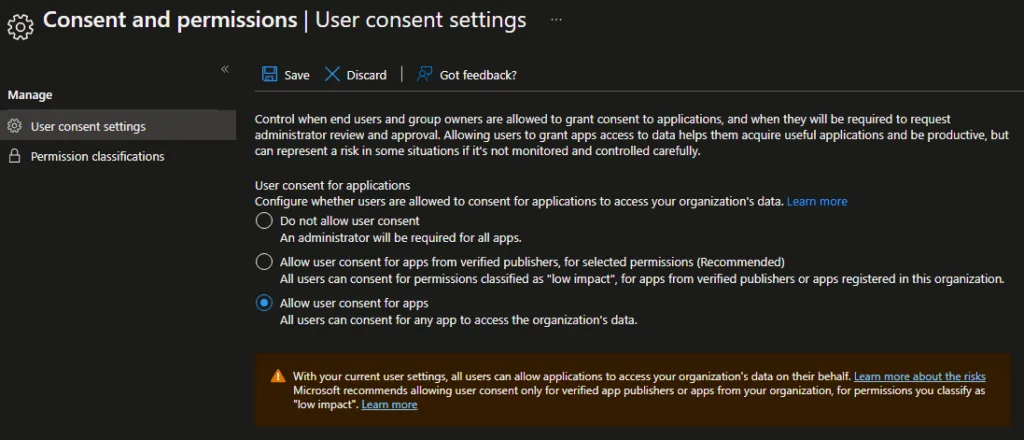
The default setting is strangely not the one that Microsoft recommend, and allows any user to consent to any app permissions. As per Microsoft:
To reduce the risk of malicious applications attempting to trick users into granting them access to your organization’s data, we recommend that you allow user consent only for applications that have been published by a verified publisher.
This is the default setting and is not secure.
Firstly, disable this setting to the more reasonable middle setting:
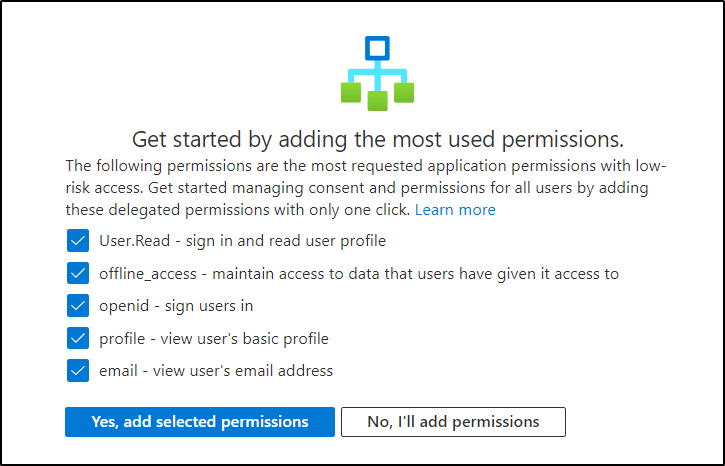
These are Microsoft Graph permissions if you need to add them manually or don’t see the above screen:
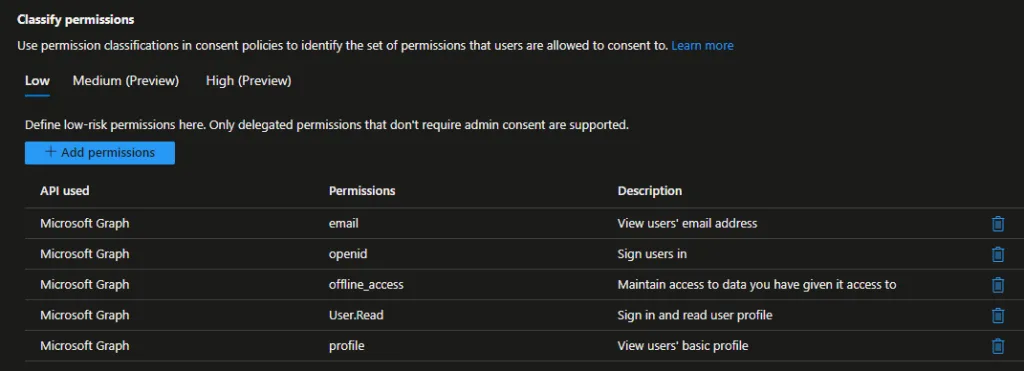
Now that you have limited the risk of users approving potentially intrusive apps, you can also control whether they can request approval from an admin for apps which need more than the permissions above.
There are two approaches:
Admin consent requests are disabled by default. In a mid-size organisation it may be a good idea to enable this. It will give you an idea of what apps your users are trying to access.
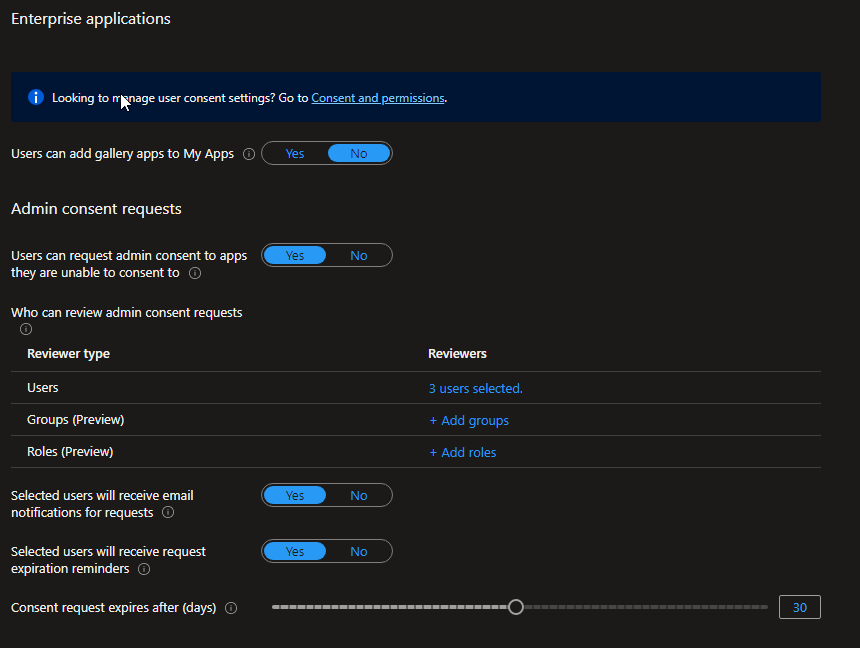
This is what users will see when trying to access an app that hasn’t been approved:
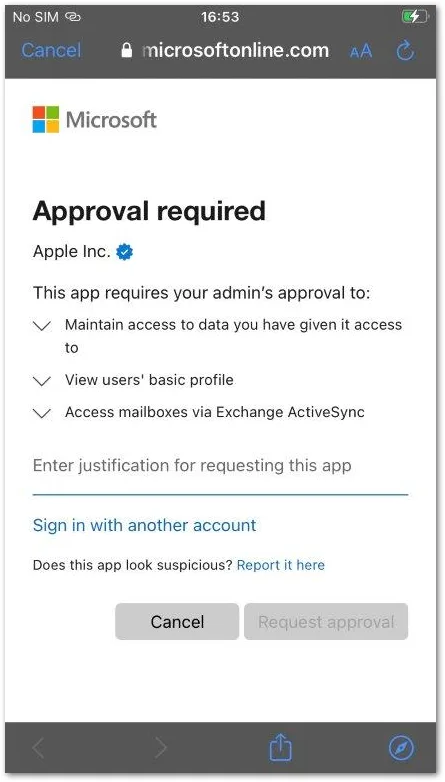
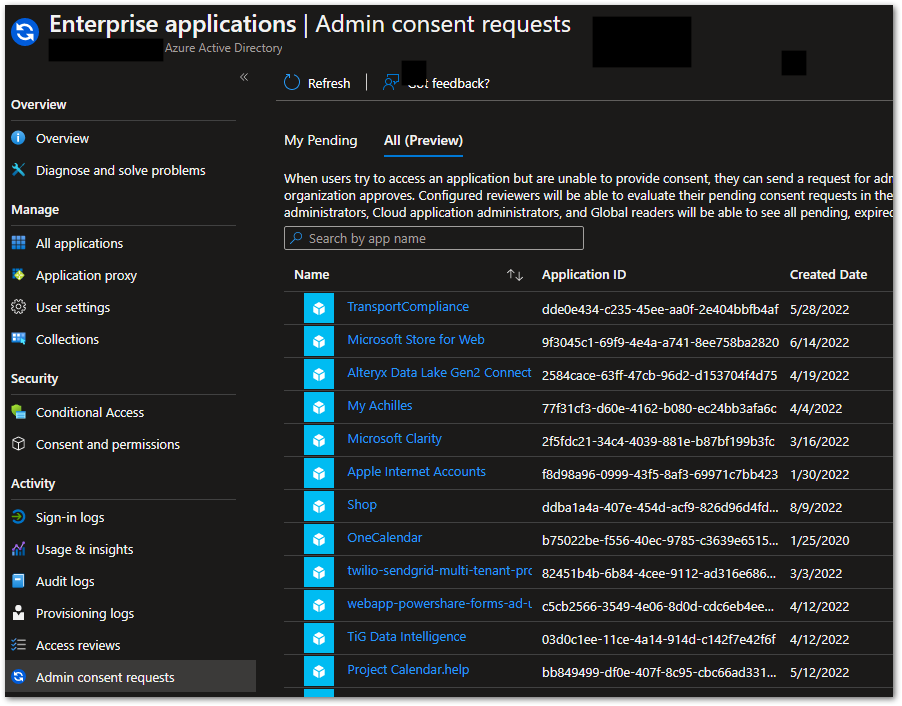
Admins will then get an email and can approve apps in Enterprise applications > Admin consent requests.
In a larger organisation, admin consents can become unmanageable, with users requesting all sorts of apps, most of which are not relevant. I would therefore recommend not enabling this, but instead consenting to specific applications on behalf of your users.
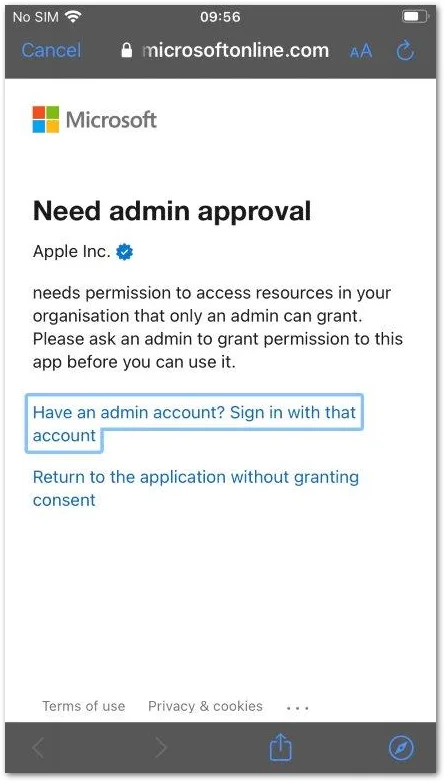
With consent disabled, users are unable to use the app or request approval:
Note: Assign developers the Application Developer role so they can still register their own applications.
If you don’t want users to have to request admin consent, or have turned off admin consent requests and want to manually approve an app, you can add an app and approve it as an admin.
A common example is Apple Internet Accounts (previously called iOS accounts). This is the iOS native Mail app. Note: I would not recommend this — get your users to use Outlook which is more secure and has better support for Exchange Online! But some VIP users insist.
First, you need to get the app to show in Azure AD Enterprise apps. It may be in one of three places:
Add the app to Azure AD Enterprise applications either by approving an existing request, or if you don’t want to do that, deny any requests and then try signing into the app with a Global admin account. This will work even if admin consent requests are denied:
You can add the app for everyone by choosing Consent on behalf of your organization, or just yourself.
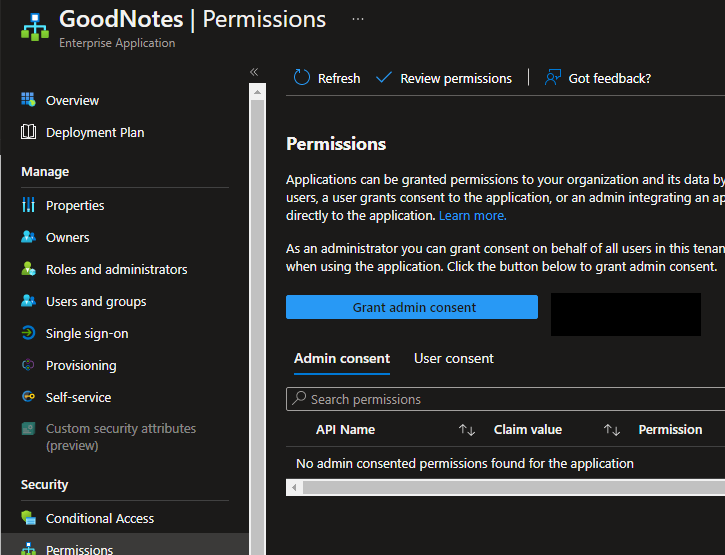
If you didn’t tick the consent box above, you can approve the app for everyone later:
Another common requirement is to allow the app, but only for a defined subset of users:
If you don’t want an app there and delete it, you can always add it back by trying to connect the same app again. Also, if you delete an app that is in use, access will immediately be revoked for anyone using the app.

