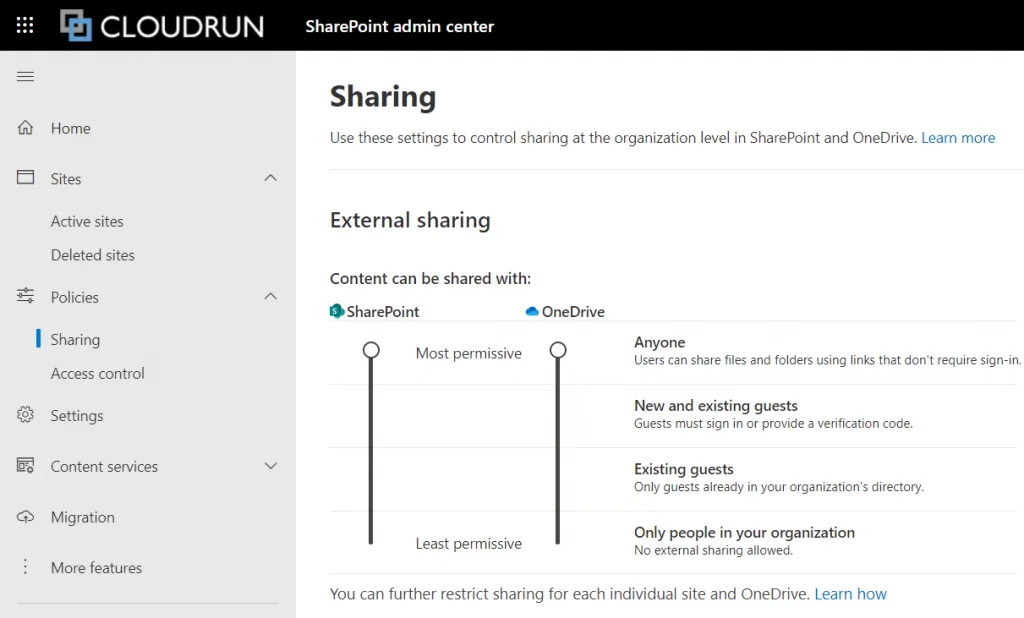
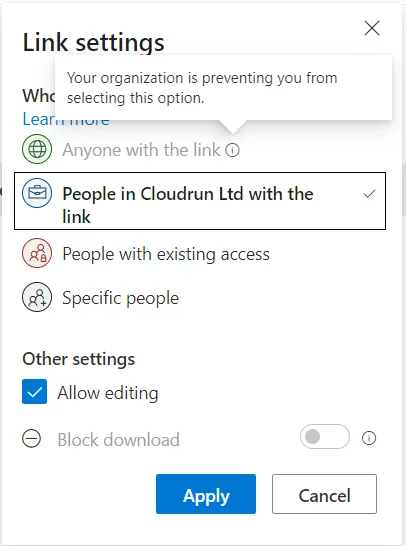
If you find the “Anyone” sharing setting greyed out and not matching the policy, this is how to apply SharePoint sharing policy settings to all your Team sites.
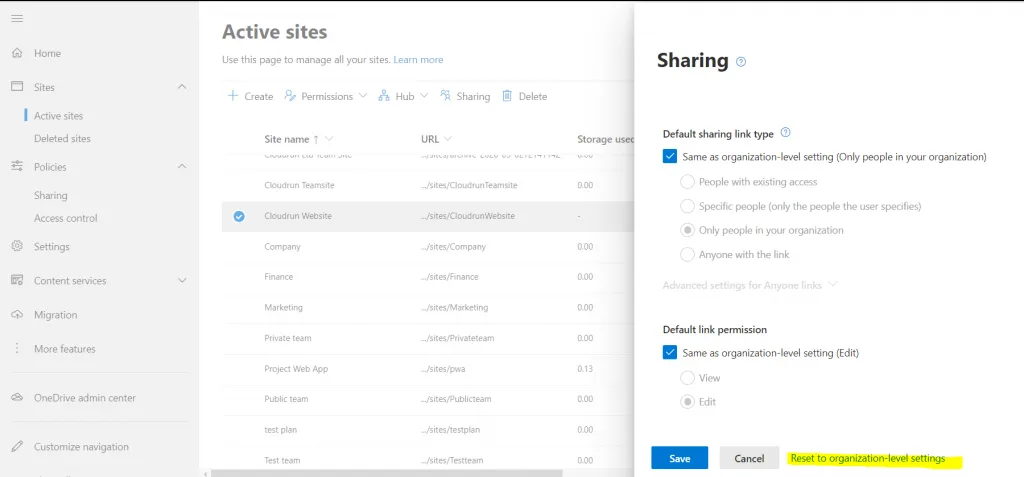
After changing the setting in the SharePoint Admin Center to allow anonymous links, you may find the option is still greyed out when sharing from Teams. This is because the policy only specifies what permissions are available — it doesn’t actually apply them to existing sites.
The solution is to use PowerShell to apply the setting to all sites.
$sharepointadmin = "https://tenant-admin.sharepoint.com"

try {
    $var = Get-SPOGeoStorageQuota
} catch {
    Write-Host "Not connected, authenticate in other window"
    Connect-SPOService -Url $sharepointadmin
}Get-SPOSite -Limit All | Where-Object {$_.Template -eq "GROUP#0"} | Format-Table Url, Template, SharingCapabilityGet-SPOSite -Limit All | Where-Object {$_.Template -eq "GROUP#0" -AND $_.SharingCapability -ne "ExternalUserAndGuestSharing"} | Set-SPOSite -SharingCapability ExternalUserAndGuestSharingSharingCapability values:
ExternalUserAndGuestSharing — allow sharing with all external users and anonymous access linksExternalUserSharingOnly — allow sharing with authenticated external users onlyExistingExternalUserSharingOnly — only share with existing external usersDisabled — no external sharingUnfortunately, you’ll still need to do this for every new Team, but at least it’s easier now!