Adobe Acrobat Reader can open, annotate and save PDFs straight from OneDrive for Business. The app has to be deployed as a managed app, its connection to Microsoft 365 has to be approved once for the tenant, and the corporate data should be protected using app protection policies. This post covers the configuration for iOS and iPadOS, and Android.
Configuration summary
Two things need to be configured:
- The app has to be able to reach OneDrive. Acrobat talks to cloud storage through Microsoft Graph. If the app is installed by the user from the App Store rather than deployed by Intune, and the connection hasn’t been approved for the tenant, the OneDrive location either never appears or the sign-in fails.
- The data has to stay protected inside the app. Once a user can open a corporate PDF, you want the PIN, the encryption and the block on copying into personal apps to apply inside Acrobat — not only in the Microsoft apps.
Requirements
- Microsoft Intune with your iOS/iPadOS apps protected using app protection policies, whether through Automated Device Enrolment or user-driven enrolment.
- An Adobe Acrobat subscription is not required, nor is SSO configuration. Adobe Reader will just be protected using MAM policies.
- A volume purchasing (VPP) token in Intune from Apple Business Manager (ABM)if you intend to deploy the apps as VPP apps, which is generally preferred since no Apple ID is required to be signed in to the app store.
A note on device licensing: VPP apps with device-based licensing avoid tying the install to a personal Apple ID, which matters if the iPads are shared or you don’t want users seeing their own accounts inside a managed app.
Deploy OneDrive and Acrobat as managed apps
- In the Microsoft Intune admin center go to Apps > iOS/iPadOS > Add.
- Add Microsoft OneDrive and Adobe Acrobat (search the iOS store or better add them from ABM and select the VPP apps).
- Deploy both as required.
Approve the app’s connection once
This step is the one that catches people out, because it is not a setting you can find and toggle in advance — it is a consent that happens the first time the integration is used.
When Acrobat connects to Microsoft 365, the tenant has to approve the app. Depending on how your tenant is configured, either:
- a user is prompted in the app and an administrator approves the request, or
- an administrator consents up front, which is the only option if you have user consent restricted.
Read the permissions on the consent screen rather than approving on autopilot. If you have restricted user consent — which you should, and which is a common reason this step blocks users silently — the sign-in will fail for everyone until an admin has granted it once.
Create the app protection policy that separates work from personal
This is where the data protection actually comes from. Do this even if the devices are fully supervised — app protection is what stops a PDF moving into a personal app or a personal iCloud backup.
- Go to Apps > iOS/iPadOS Protection > Create policy > iOS/iPadOS.
- Select all apps, rather than just Microsoft apps. This will then also cover Adobe Acrobat. You could also select individual apps, as long as both Acrobat and OneDrive are covered.
- Set other app protection controls for your organisation, e.g.
- require a PIN to open the apps, and re-prompt after a timeout;
- encrypt work data;
- block cut, copy, paste and “save as” to unmanaged locations;
- block backup of work data to personal iCloud;
- wipe work data if the device is jailbroken, and after a number of failed PIN attempts.
- Assign the policy to the same group you deployed the apps to (normally all users).
What the user does on the device
Only one step is left to the end user, and it is worth writing into your own onboarding notes because it is a toggle inside the app, not a setting Intune can flip for them:
- Open Adobe Acrobat Reader on the device.
- Accept the app protection prompt and set the app PIN if prompted.
- Click on your profile in the top left, and open Preferences
- Scroll to the bottom and enable Intune App Protection. Note that the Adobe site says this is in About, which is incorrect.
- Turn on the OneDrive/cloud storage connection in Files,
- Browse to the file and open it.
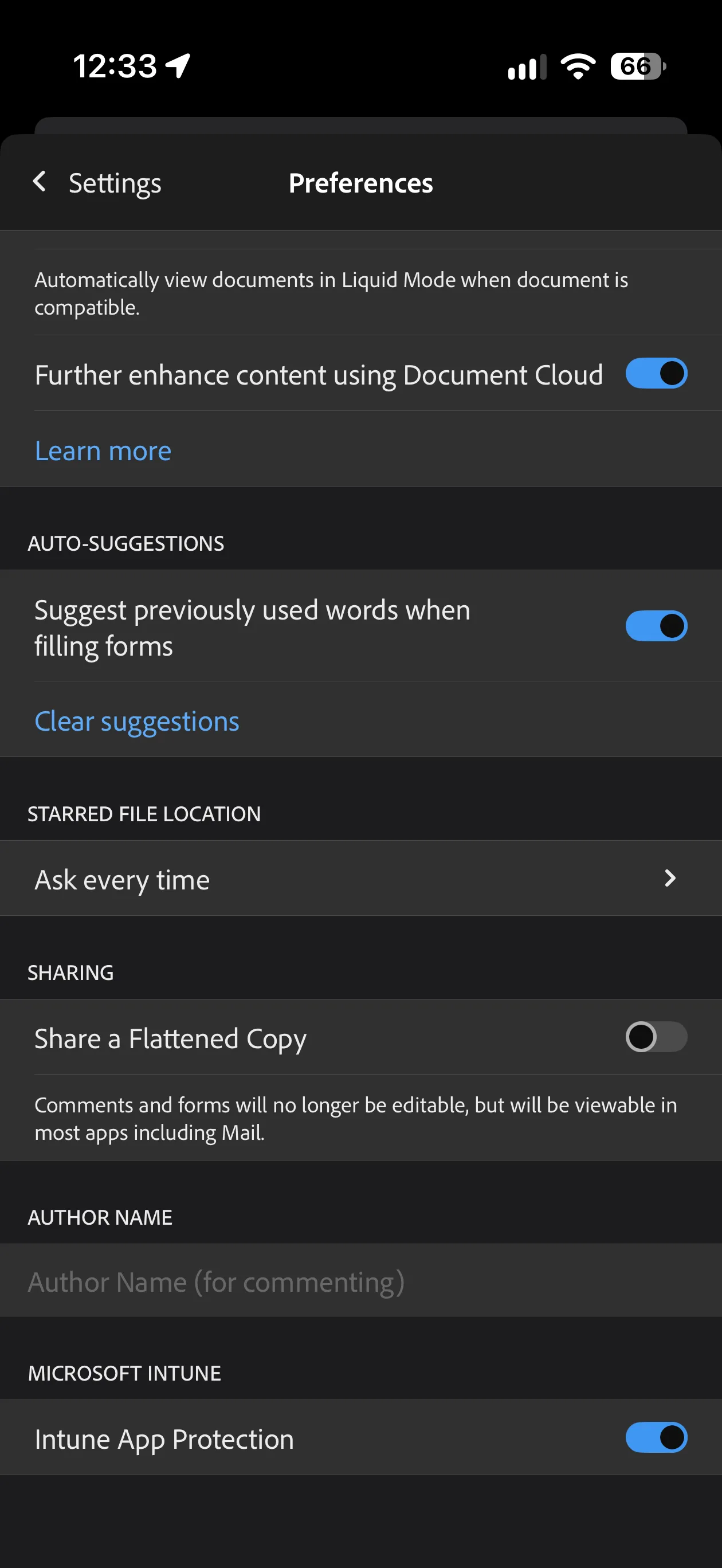
Once this is done, you can open PDFs open from OneDrive and save back to it, with the policy applied.
Verifying it worked
Check both ends rather than trusting the app:
- In the app — OneDrive appears as a storage location, a PDF opens from it, and edits save back to it.
- In Intune — the app protection status for the user shows the apps as protected, and the troubleshooting blade confirms which policy applied to that device.
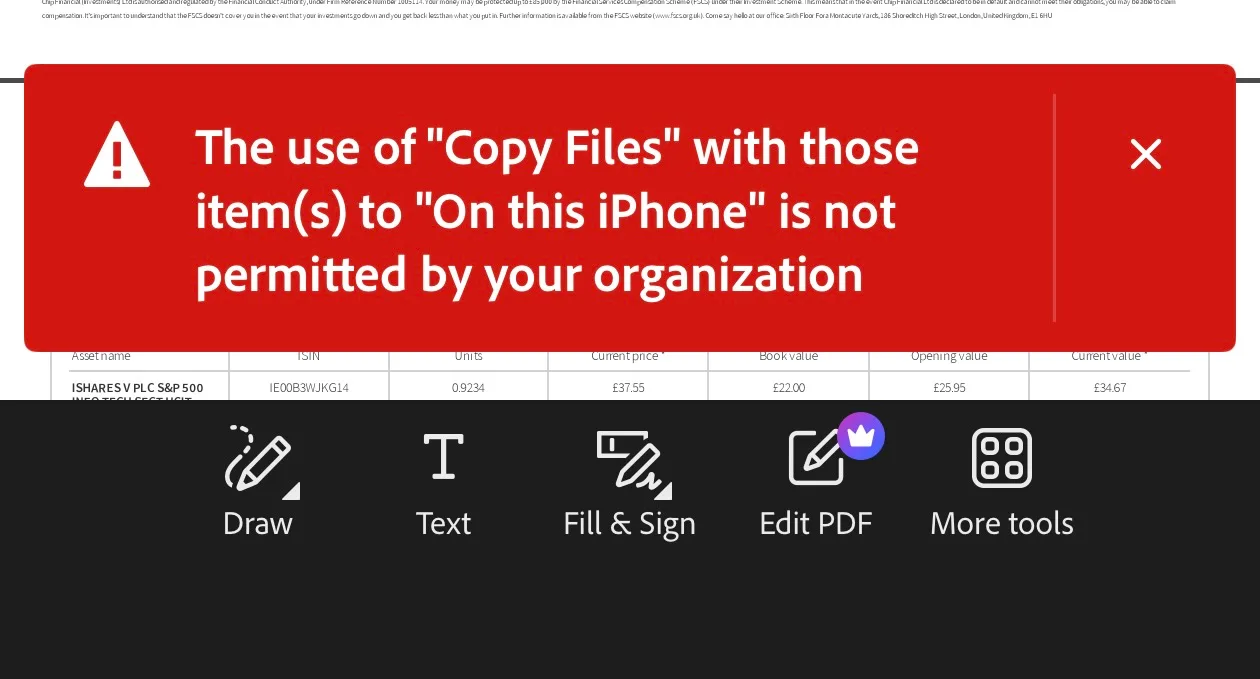
- Test the boundary — try to copy text out of a work PDF into a personal app, or save to a non-protected location. It should be blocked. If it isn’t, the policy isn’t working for Acrobat.
Troubleshooting
OneDrive doesn’t appear in Acrobat. The tenant consent hasn’t completed, or the app is out of date. Update it from the store and re-test with a user who has the licence assigned.
The PIN prompt never appears. Either the policy isn’t assigned to that user or group, or the app wasn’t installed by Intune. A store-installed app that the user added themselves can fall outside the policy entirely.
Summary
Getting Adobe Acrobat and OneDrive for Business properly requires configuration app protection policies to protect both apps, and then the user must switch the integration on inside the app itself.


