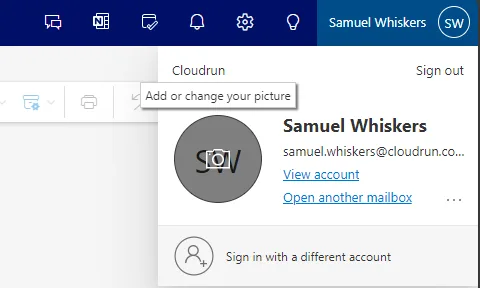
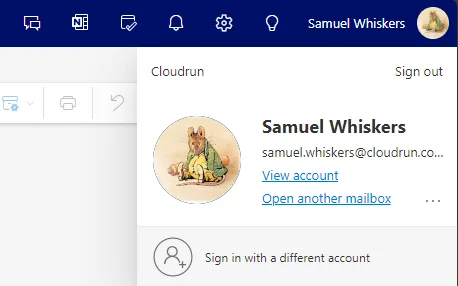
Here’s a concise guide on how to add or change your profile photo in Microsoft 365:
- Find a Suitable Photo: Select a photo stored on your computer, OneDrive, or any accessible location. The photo should be smaller than 4 MB and can be in .png, .jpg, or .gif format.
- Sign In to Microsoft 365: Visit Microsoft365.com and sign in with your work or school account.
- Access Your Profile: In the upper right-hand corner of the page, click the circle displaying either your initials or an icon of a person.
- Change Your Photo: Click the circle again and select Change photo. Upload your chosen photo and apply it.
Admins: If you’re a Microsoft 365 admin, you can also add photos on behalf of users using the Microsoft 365 admin center or Microsoft Graph PowerShell. For detailed instructions, refer to the Change user profile photos documentation.
Your profile photo will appear wherever there’s a profile photo circle in Microsoft 365.
Also see Microsoft Support article.