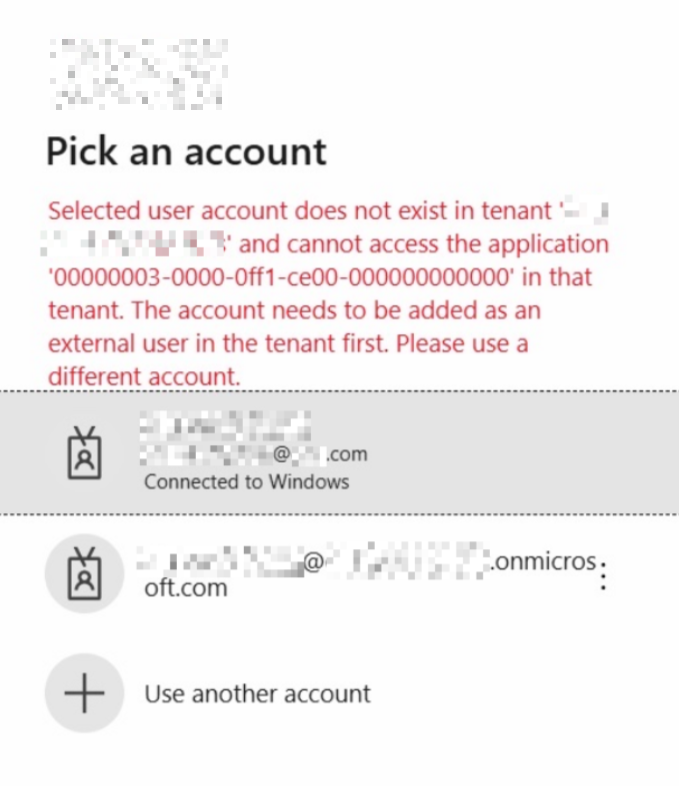
How to resolve the error that Guest users receive when accessing shared content from SharePoint online.
If I had £1 for every time I have been asked why external (Guest) users get this error, I would have at least…well £20. But I am writing this in the vain hope that people will find my article instead of asking me to fix it 😉
The usual cause for this issue, is that the external user has changed either their primary email address, or their UPN, or both. But this method will also work for other root causes.
Background
What typically happens is this:
- Someone shares a site, file or folder with an external user
- With SharePoint Entra B2B integration enabled (see here), a Guest account will be created automatically.
- This all works fine, until a UPN or email change is made to the external user in their own tenant.
- They then get the error above: Selected user account does not exist in the tenant.
This is obviously pretty confusing for the Guest user, and equally puzzling for the typical help desk user. So why does this happen?
Why do they get the error?
When you invite someone to SharePoint/Teams:
- Azure AD creates a guest object in your tenant
- That object is tied to the user’s immutable ID, not their current email
- If the user later changes one of:
- Their primary email
- Their UPN
- Their domain
- Their identity provider
…your tenant still expects the old identity. When they try to log in with the new email, Microsoft says:
“Account does not exist in the tenant.”
Because technically, it doesn’t — the guest object still references the old identity.
How to fix this?
Prerequisites:
- Entra User Administrator role
- SharePoint admin, or site admin for the affected site(s)
The fix is as follows:
- Delete the Guest user from Entra ID
- Delete the user from the SharePoint User Information list.
Point 2 is the bit that most people miss, but is usually required to resolve this error.
SharePoint maintains a hidden list called the User Information List, add this after the site name in the site URL:
/_catalogs/users/simple.aspx
I normally use the people list here, because you can sort via email once you add the field:
/_layouts/15/people.aspx?MembershipGroupId=0
When a guest user is invited, SharePoint creates an entry based on the original identity.
If the guest later changes their email/UPN, SharePoint still tries to authenticate them using the old claim, so the mismatch causes: “Account does not exist in the tenant.”
Remove via SharePoint site UI
- Go to the affected SharePoint site
- /_layouts/15/people.aspx?MembershipGroupId=0
- Edit Detail view in List Settings and add the e-mail field
- Find and delete the user from the list
Remove using PowerShell
Connect-PnPOnline -Url "https://yourtenant.sharepoint.com/sites/yoursite" -Interactive

# Find the user
$user = Get-PnPUser | Where-Object { $_.Email -eq "[email protected]" }

# Remove the user (confirmation will be required)
Remove-PnPUser -Identity $user.LoginName
or
$user | remove-pnpuser
Once you have done this, the error should be resolved.