This is a brief guide showing how to collaborate with external users in Microsoft Teams.
There are two ways of collaborating with external users in Teams: Federation (external access) and Guest access.
| Feature | Federation | Guest access (requires tenant switching) |
|---|---|---|
| Chat | Yes (own tenant) | Yes |
| Call | Yes (own tenant) | Yes |
| Add to Teams | No | Yes |
| Share files | No | Yes |
Recommendations:
Note that although you can call/chat with Guests, because this requires tenant switching, the external user will likely not see the call or chat notification since they will be in their own tenant.
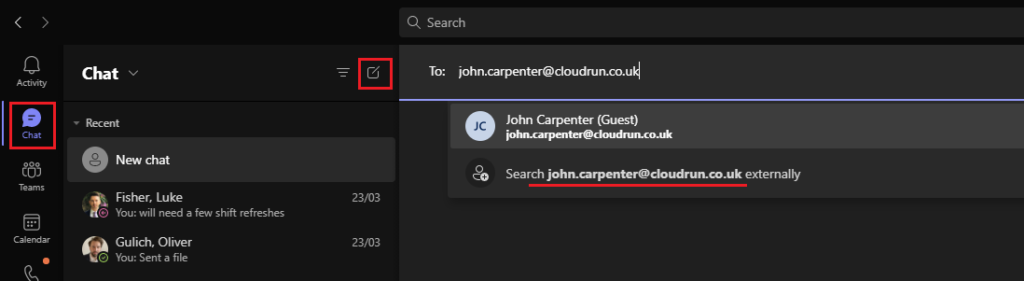
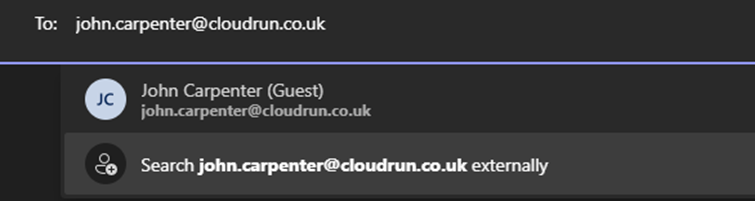
Federation (also known as external access) is simpler and allows chat and calls with external users directly. Domains have to be authorised and added first.
To communicate with an external user:
The external user will see notifications pop up in their Teams client as normal. Communication is two-way.
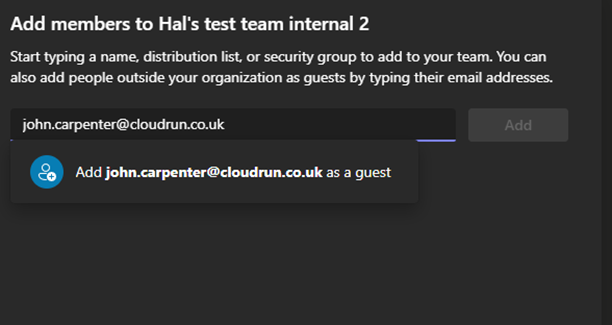
This is required if you need to add an external user to a Team, rather than just chat or call.
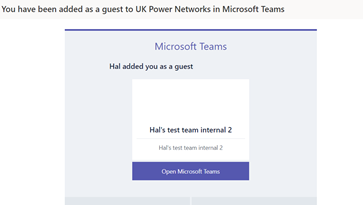
To add a Guest to a Team:
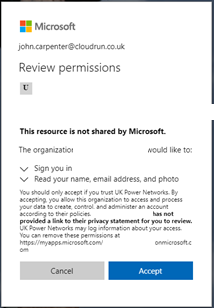
The external user will receive an email and can accept using their own credentials. They may need to set up MFA depending on your Azure AD external access and conditional access policies.
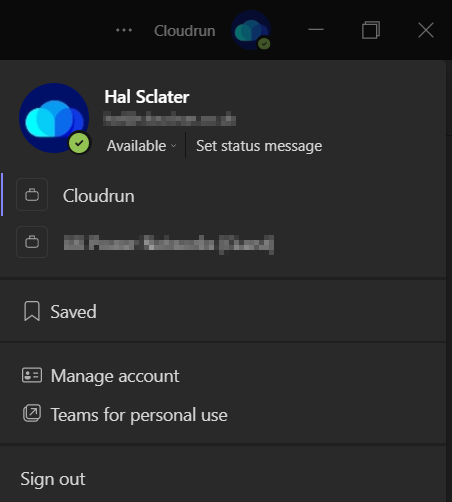
Tenant switching: The external user will need to switch tenants in Teams to view the Team. This is done by clicking on the company name in the top right and choosing the external company.
For more details, see Microsoft’s documentation on external access.